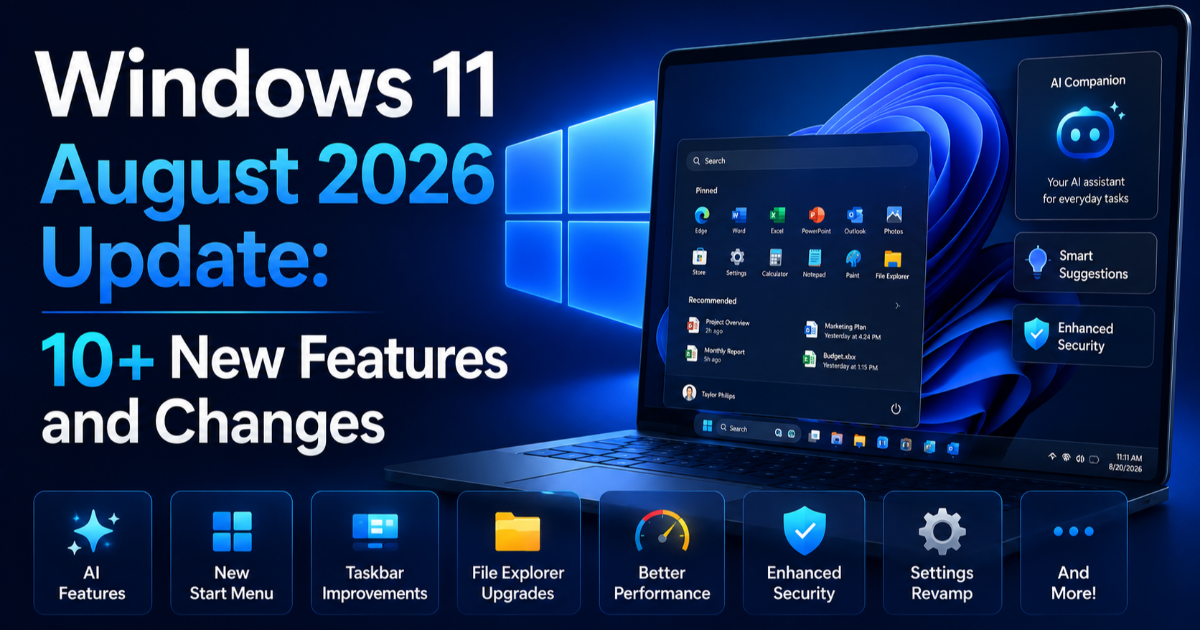
Windows 11 August 2026 Update: 10+ New Features and Changes
The Windows 11 August 2026 update brings stronger security, AI model controls, faster app launches, better Search, File Explorer improvements, Voice Access upgrades and more.
On this page
Microsoft's August 2026 Windows 11 update is now rolling out, and although it does not introduce a dramatic visual redesign, it contains a surprisingly broad set of changes across security, performance, search, voice control, AI components, File Explorer, power management and Windows Update.
The main cumulative release for Windows 11 versions 24H2 and 25H2 is KB5121003, released on August 11, 2026. Microsoft lists builds 26100.9168 and 26200.9168 for the two supported versions and says the package includes security improvements as well as quality changes carried forward from previous releases. Microsoft currently lists no known issues for this update.
What makes this update especially interesting is the direction of the changes. Microsoft is simultaneously making Windows more secure, improving everyday responsiveness, giving users more control over AI components, and making built-in voice features more practical.
What Is the Windows 11 August 2026 Update?
The August release is a monthly cumulative update rather than a completely new Windows version. For users running Windows 11 24H2 or 25H2, KB5121003 combines security fixes with improvements that were previously introduced through optional preview updates.
Microsoft's release notes specifically identify security improvements and additional Secure Boot certificate deployment work. The update also contains AI component updates for Copilot+ PCs and includes servicing-stack improvements intended to make the update installation process more reliable.
Microsoft is also distributing the update through normal Windows Update channels, Windows Update for Business, the Microsoft Update Catalog and WSUS. That means ordinary users do not normally need to manually download the package.
However, not every feature will necessarily appear immediately after installation.
Microsoft uses a Controlled Feature Rollout for some Windows improvements, meaning certain features can be enabled gradually rather than becoming available on every compatible PC at exactly the same time.
The Most Important Change: Windows Hello Gets Stronger
One of the more meaningful changes is an expansion of Windows Hello Enhanced Sign-in Security, commonly called ESS.
Windows Hello already provides biometric authentication through features such as fingerprint recognition. Enhanced Sign-in Security goes further by isolating biometric processing in a secure memory environment instead of relying solely on the normal operating-system environment.
The August update extends ESS support to compatible external fingerprint sensors. Previously, the enhanced capability was primarily associated with systems using supported built-in biometric hardware.
This is more significant than it may initially appear.
A fingerprint sensor is handling authentication information that should not be treated like an ordinary peripheral. If biometric processing can be isolated more effectively from the rest of the operating system, the attack surface around authentication can potentially be reduced.
For businesses, this matters even more because external biometric devices can be used in desktop environments where built-in laptop sensors are not available.
The change also demonstrates an important direction for Windows security: authentication is increasingly being protected not only through passwords and software policies, but through hardware-assisted isolation.
Microsoft Is Finally Giving Users More Control Over Windows AI
Perhaps the most interesting consumer-facing change is the ability to uninstall the Image Generation AI model from supported Copilot+ PCs.
Microsoft's August update adds an uninstall option under Settings > System > AI Components. Windows Central notes that this does not provide a universal switch for disabling every AI capability in Windows, but it gives users more control over an individual AI component.
This is an important development because Microsoft's AI strategy has increasingly placed AI models directly into the operating system.
That creates a practical question: what happens when a user does not want a particular model installed?
Traditional Windows components usually exist because the operating system needs them. AI components introduce a different model. Some users may benefit from them, while others may prefer to remove unnecessary models because of storage usage, privacy concerns, system-management policies or simply because they do not use the feature.
Giving users a removal mechanism therefore represents a shift toward user-selectable AI components.
It is not yet the complete control many critics have requested, but it is a meaningful step.
Why the AI Model Removal Feature Matters Beyond Storage
At first glance, uninstalling an image-generation model might seem like a minor storage-management feature.
There is a bigger issue underneath it: AI is becoming part of the operating system itself.
As Windows adds more local models, users may eventually need the same kind of control over AI components that they already have over optional applications and system features.
A future Windows PC could contain multiple local models for image generation, speech recognition, semantic search, document understanding and other tasks. That makes component management increasingly important.
Microsoft's August update already shows the beginning of this approach. The official release notes say the update refreshes several AI components, including image search, content extraction, semantic analysis and a settings model, although these components apply to Copilot+ PCs.
The more AI becomes embedded into Windows, the more important it becomes for Microsoft to explain what each model does, where it runs, what data it processes and whether users can remove or disable it.
Windows 11 Apps Are Getting Faster to Launch
Performance improvements are another major part of the August update, although they are less visible than a new interface.
Microsoft is extending a feature known as the Low Latency Profile, or LLP, to application launches. TechRadar reports that the feature was previously used for selected Windows interface elements but is now being extended to applications through a controlled rollout.
The basic idea is straightforward.
When an application launches, Windows can temporarily increase processor performance so the system can complete the initial workload more quickly. Once the application is running, the processor can return toward its normal operating behavior.
This is a different strategy from simply keeping the CPU running at a higher performance level all the time.
Instead of continuously sacrificing power efficiency for speed, Windows can apply a short performance boost when responsiveness matters most.
For users, that could make frequently opened applications feel more responsive without necessarily requiring a permanently higher power state.
There is an important limitation, however: Microsoft is rolling the capability out gradually. Therefore, two otherwise similar Windows 11 PCs may not receive exactly the same behavior at the same time.
Windows Search Is Finally Becoming More Forgiving
Windows Search is also receiving a set of small changes that could have a surprisingly large effect on everyday use.
The August update improves how Windows handles typos and partial application names. Users can also initiate searches with very short two-character queries, while Settings search has been adjusted to rank more relevant options higher.
Consider a simple example.
If you remember only part of an application's name or accidentally type it incorrectly, traditional search systems may fail to return the application you actually wanted. A more tolerant search engine can infer that the input is probably close to a known application or setting.
This sounds minor, but operating-system search is increasingly becoming the central way users interact with large collections of applications, settings and files.
As Windows adds more features, better search becomes less of a convenience and more of a usability requirement.
File Explorer Gets Practical Improvements Instead of Cosmetic Changes
Microsoft has also improved File Explorer, but the changes are deliberately practical.
In Details view, file sizes can now be displayed using more appropriate units such as KB, MB and GB rather than presenting every value in kilobytes. Middle-clicking a folder can also open it in a new tab from supported File Explorer locations.
These are not headline features, but they address the kind of friction users encounter repeatedly.
A file manager is used hundreds or thousands of times over the life of a PC. Small improvements to navigation, readability and tab behavior can therefore have a greater cumulative impact than a flashy feature that is used only occasionally.
Microsoft has also made improvements to thumbnails and addressed visual behavior on the File Explorer Home page.
Voice Access Gets a Major Usability Upgrade
Windows 11's accessibility tools are also becoming more sophisticated.
The August update introduces Voice Isolation for Voice Access. The feature is designed to filter background noise and nearby voices so Windows can better recognize the person giving commands.
There are effectively different levels of audio processing.
- Voice Isolation: designed to isolate the user's voice from background noise and other nearby speakers.
- Background-noise removal: suppresses environmental sounds without requiring the same voice setup.
- No filtering: uses the microphone input without additional processing.
Microsoft's implementation requires a one-time voice setup for the full Voice Isolation experience, while the simpler background-noise suppression option does not require the same setup.
This can be especially useful in environments where voice commands are difficult because of keyboards, fans, conversations, doors closing or other ambient sounds.
It also demonstrates a broader shift in accessibility software. Voice interfaces are becoming less dependent on ideal environments and more capable of operating in the noisy conditions people actually experience.
Touchpad Gestures Become More Customizable
Precision touchpads are getting additional customization options.
Users can adjust the speed of scrolling and zoom gestures, while accelerated scrolling allows the movement to become faster as the gesture continues.
For laptops with large documents, long web pages or extensive timelines, this can reduce the amount of repeated physical movement required to navigate.
It is another example of Microsoft's current Windows strategy: instead of relying entirely on major feature releases, the company is gradually improving the small interactions that determine whether an operating system feels efficient.
Energy Saver Settings Return
Microsoft is also restoring a setting that lets users configure the battery percentage at which Energy Saver activates.
The option had previously been removed as Microsoft moved toward more automatic power management. The August update brings the manual threshold back to the Power & Battery settings.
This is a good example of why user control remains important even when automated systems are technically capable.
Automatic battery management can be convenient, but laptop owners have different priorities. Someone traveling without a charger may want aggressive power saving at a higher battery percentage, while another user connected to power most of the day may prefer performance for longer.
Restoring the manual setting gives users a way to express that preference.
Windows Update Itself Is Becoming More Transparent
Ironically, Microsoft is also improving the mechanism used to deliver Windows updates.
The August release improves the accuracy of update progress estimates and modifies the cleanup process after updates are installed. Microsoft says the cleanup changes are intended to improve system performance.
Better progress information may sound cosmetic, but it addresses one of the most frustrating aspects of operating-system maintenance: not knowing whether a machine is still working or has become stuck.
More predictable update behavior is especially important for businesses, where a large number of machines may be updated under management policies.
Secure Boot Certificates Are Another Important Part of This Update
There is a less visible but important security story behind the August release.
Microsoft says Secure Boot certificates used by many Windows devices began reaching their expiration period from June 2026 onward. The company has been deploying replacement certificates to PCs and unmanaged business devices over recent months and will continue distributing newer certificates through Windows Update.
The August update includes additional high-confidence device-targeting data intended to increase coverage for devices eligible to automatically receive the new Secure Boot certificates.
Secure Boot matters because it helps protect the early stages of the boot process against unauthorized or modified software.
That makes certificate maintenance more than an administrative detail. If the trust infrastructure behind Secure Boot becomes outdated, the security chain used during startup can eventually become a problem.
Microsoft's continued certificate rollout therefore deserves attention even though most users will never see the process happening.
Windows 11 24H2 Users Have Another Reason to Pay Attention
Microsoft's release notes contain an important lifecycle warning for Windows 11 24H2.
The Home and Pro editions of Windows 11 24H2 are scheduled to reach the end of updates on October 13, 2026. Microsoft says those editions will no longer receive monthly security and preview updates after that date. Enterprise and Education editions have a longer support period, extending to October 2027.
That means users should not think of the August update simply as another optional Windows patch.
If a PC is still running an edition approaching its servicing deadline, staying on the current version could eventually become a security problem.
Users can check their Windows version through Settings > System > About. If the device is eligible for a newer supported Windows release, upgrading before the support deadline is the safer long-term approach.
What About Windows 11 26H1?
Windows 11 26H1 receives a separate August cumulative update, KB5121000, with OS build 28000.2704.
Microsoft describes KB5121000 as a cumulative update containing the latest security fixes and improvements along with non-security changes from the previous optional preview release.
Therefore, users should check their Windows version before assuming that KB5121003 is the correct package for their machine.
The update discussed most heavily in current consumer coverage, however, is KB5121003 for Windows 11 24H2 and 25H2.
Should You Install the August 2026 Windows 11 Update?
For most supported Windows 11 users, the security argument for installing a monthly security update is strong.
Microsoft says KB5121003 contains security improvements and currently lists no known issues for the release.
At the same time, feature availability is not completely uniform because some changes are delivered through controlled rollouts. Installing the update does not necessarily mean every newly announced capability will appear immediately.
For ordinary users, the sensible approach is to let Windows Update handle the installation normally rather than manually forcing packages unless there is a specific reason to do so.
Businesses and administrators should evaluate the update through their normal testing and deployment process, particularly where specialized drivers, authentication hardware or business-critical applications are involved.
What Users Should Check After Installing
After the update has been installed, there are several settings worth checking.
- Open Settings > Windows Update and confirm that the installation completed successfully.
- Check Settings > System > About to confirm the Windows version and build.
- If you use a Copilot+ PC, check Settings > System > AI Components to review the new AI model management option.
- If you use external fingerprint hardware, open Settings > Accounts > Sign-in options and check whether Enhanced Sign-in Security is available.
- If you use Voice Access, review the speech-recognition settings and configure Voice Isolation if appropriate.
- If you use a laptop, check Power & Battery to review the restored Energy Saver threshold.
- If you rely heavily on touchpad gestures, review the new scrolling and zoom controls.
Some of these settings may not be visible immediately because Microsoft is controlling the rollout of certain features.
The Bigger Meaning of Microsoft's August Update
The August 2026 release is interesting because it shows where Windows is heading without relying on one massive headline feature.
Microsoft is improving several layers of the operating system simultaneously.
At the security layer, Windows Hello ESS is expanding to external fingerprint sensors and Secure Boot certificate deployment is continuing.
At the AI layer, Microsoft is updating local AI components while beginning to give Copilot+ PC owners more control over individual models.
At the performance layer, application launch behavior is being improved through Low Latency Profile.
At the usability layer, Windows Search, File Explorer, touchpad gestures, battery controls and Windows Update are being refined.
At the accessibility layer, Voice Isolation makes voice control more practical in noisy environments.
That combination is important because an operating system is ultimately judged by hundreds of small interactions rather than one spectacular feature.
Windows 11 Is Quietly Becoming More Modular
Perhaps the most interesting long-term trend is the increasing modularity of Windows.
AI components can be updated separately. Features can be rolled out gradually. Security certificates can be deployed independently. Windows components receive improvements without requiring a complete operating-system redesign.
This model allows Microsoft to change Windows continuously rather than treating each major release as the only opportunity for meaningful innovation.
For users, however, that also creates a new responsibility: keeping track of what version they are running, which features are enabled, what is being processed locally and which components they actually need.
As Windows becomes more intelligent and more modular, transparency becomes just as important as functionality.
Final Takeaway
The Windows 11 August 2026 update may not look revolutionary, but it is one of those releases whose importance becomes clearer when the individual changes are viewed together.
KB5121003 brings security improvements, expanded Windows Hello Enhanced Sign-in Security, AI component updates, an option to remove the Image Generation AI model on supported PCs, faster application-launch behavior, better Windows Search, improved File Explorer navigation, stronger Voice Access noise handling, customizable touchpad gestures, restored Energy Saver controls and improvements to Windows Update.
The most significant development may actually be the changing relationship between Windows and AI. Microsoft is not only adding AI capabilities to the operating system; it is beginning to expose AI components as things users can manage.
That could become increasingly important as future Windows releases include more local models and intelligent system features.
For now, the August update delivers a clear message: Microsoft is trying to make Windows 11 more secure, more responsive, more controllable and increasingly AI-aware without forcing users to wait for a major Windows redesign.
And with Windows 11 24H2 Home and Pro approaching their October 13, 2026 support deadline, keeping the operating system current is no longer just about getting the newest features. It is becoming an essential part of maintaining a secure PC.
Written by