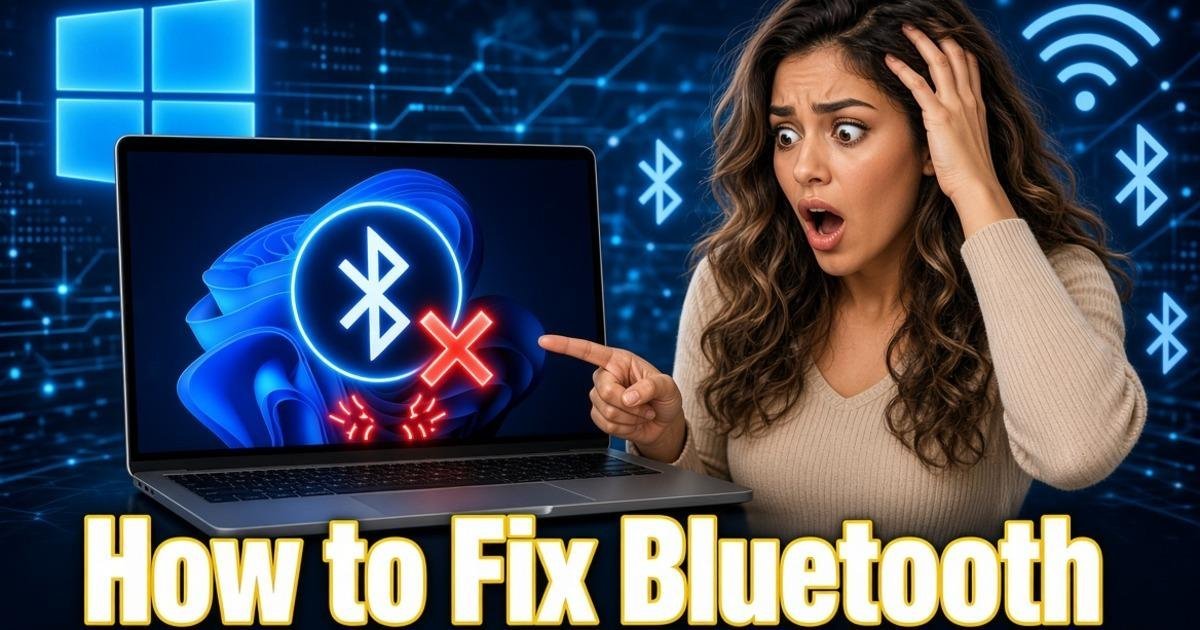
How to Fix Bluetooth Problems in Windows 11
Bluetooth problems in Windows 11 can often be fixed by resetting pairings, updating drivers, changing power settings and checking audio output. Here is the safest troubleshooting order.
On this page
Windows 11 users are still seeing Bluetooth problems ranging from devices disappearing from Settings to unstable audio connections and crashes during Bluetooth streaming. Microsoft is testing several Bluetooth fixes in recent Windows Insider builds, but those fixes are not yet a general solution for every Windows 11 PC. Until they reach the stable release, the safest approach is to work through Microsoft's current troubleshooting path rather than installing unofficial driver packages.
Start by checking whether Windows can see the Bluetooth adapter
If Bluetooth has disappeared completely, first open Settings > Bluetooth & devices and check whether the Bluetooth switch is present. If the switch is missing, open Device Manager and expand Bluetooth. A missing adapter can indicate a driver problem, while a warning icon beside the adapter points to a device or driver error. Microsoft also recommends checking whether Airplane mode is disabled because it prevents wireless connections from working normally.
If the adapter appears in Device Manager but Bluetooth is still unavailable, right-click it and choose Update driver. Windows can search for a newer driver automatically, but the PC manufacturer's support page is often the better place to check because laptop and desktop vendors may provide Bluetooth drivers specifically tested for their hardware. Restart Windows after installing a driver before judging whether the problem is fixed.
Reset the Bluetooth connection before changing drivers
For a Bluetooth device that is visible but refuses to connect, do not immediately reinstall Windows or start changing advanced settings. Turn Bluetooth off in Settings > Bluetooth & devices, wait about 10 seconds, and turn it back on. Then make sure the accessory is charged, switched on and actually in pairing mode. Microsoft recommends removing the device from Windows and adding it again when an existing pairing has become unreliable.
- Open Settings > Bluetooth & devices > Devices.
- Find the problem device and select its three-dot menu.
- Choose Remove device.
- Put the accessory back into pairing mode.
- Select Add device and pair it again.
This sequence matters because repeatedly attempting to connect to a damaged or stale pairing record can make troubleshooting harder. If the device works normally after being removed and paired again, there is usually no reason to reinstall the Bluetooth adapter driver.
Fix Bluetooth devices that keep disconnecting
Frequent disconnections are often related to power management rather than the Bluetooth accessory itself. Microsoft recommends checking the Bluetooth adapter's power-management settings and disabling the option that allows Windows to turn off the device to save power. Battery-saving modes can also interfere with wireless peripherals, particularly on laptops.
- Open Device Manager and expand Bluetooth.
- Right-click the Bluetooth adapter and select Properties.
- Open the Power Management tab if it is available.
- Clear Allow the computer to turn off this device to save power.
- Select OK and restart the PC.
If the Power Management tab is not available, do not treat that as an error. Driver and hardware combinations expose different controls, so the option may simply not be provided by your adapter. In that case, update the driver and test the connection again rather than changing unrelated power settings.
When Bluetooth headphones connect but the sound is wrong
A Bluetooth headset can show as connected while Windows sends audio somewhere else. Open Settings > System > Sound and check the selected output device. If the headset is connected but produces no sound, select it explicitly as the output device instead of assuming Windows has switched automatically.
Microsoft also recommends checking the Bluetooth device's advanced sound settings when available. For troubleshooting, a standard two-channel, 16-bit, 48,000 Hz format can help determine whether the problem is related to an unsupported or problematic audio configuration. If the headset works with that setting, the connection itself may be fine and the problem may be related to the selected audio mode.
Microsoft is testing deeper Bluetooth fixes
There is a useful clue in Microsoft's September 10, 2026 Windows Insider Release Preview build. Microsoft says the build improves microphone compatibility with certain Bluetooth Classic audio accessories, improves reliability with Bluetooth Low Energy Audio accessories, and fixes a crash with error code 0x139 that could occur while streaming Bluetooth audio. It also includes improvements to shared audio and Bluetooth quick-settings navigation.
These changes are significant because they show that some current Bluetooth failures are not simply caused by users pairing devices incorrectly. Microsoft is addressing problems inside Windows itself. However, the build is a Release Preview Insider build, so it should not be treated as proof that the same fixes are already available to every stable Windows 11 installation.
Run Microsoft's Bluetooth troubleshooter before deeper repairs
Windows 11 includes an automated Bluetooth troubleshooter through the Get Help application. It can check common configuration and connection problems before you start removing drivers or changing system settings manually. Microsoft specifically recommends using this automated diagnostic path for Bluetooth failures.
Open the Get Help app and start the Bluetooth troubleshooting flow. If that does not resolve the problem, you can continue with Device Manager, driver updates and re-pairing. This order reduces unnecessary changes and gives you a clearer indication of whether the failure is caused by Windows configuration, the driver or the Bluetooth accessory itself.
Reinstall the Bluetooth adapter only when the normal fixes fail
If Bluetooth is still unreliable after updating the driver and removing the affected device, reinstalling the adapter is a reasonable next step. In Device Manager, expand Bluetooth, right-click the Bluetooth adapter and choose Uninstall device. After shutting down and starting the PC again, Windows will normally attempt to detect and reinstall the adapter; Microsoft also provides Action > Scan for hardware changes if the adapter does not return automatically.
Do not download a random Bluetooth driver from a third-party driver website simply because the adapter is not working. The correct driver depends on the actual wireless hardware and the PC manufacturer's implementation. A driver package that appears to match the Bluetooth version can still be wrong for the system.
Know when the problem is actually Windows
Recent Microsoft testing makes it clear that some Bluetooth failures require an operating-system fix rather than another round of local troubleshooting. Microsoft's September 10 Insider build specifically addresses Bluetooth audio crashes, microphone compatibility and Low Energy Audio reliability, which means affected users may still encounter a problem that cannot be permanently solved with today's stable driver tools.
The practical rule is simple: if Bluetooth works after updating the driver and re-pairing the device, keep the configuration and stop changing things. If multiple Bluetooth accessories fail in the same way on one Windows installation, especially after a Windows update, watch Windows Update for a newer stable build instead of repeatedly reinstalling drivers. That distinction can save hours of troubleshooting when the underlying problem is Microsoft's code rather than your headphones, keyboard or mouse.
Written by