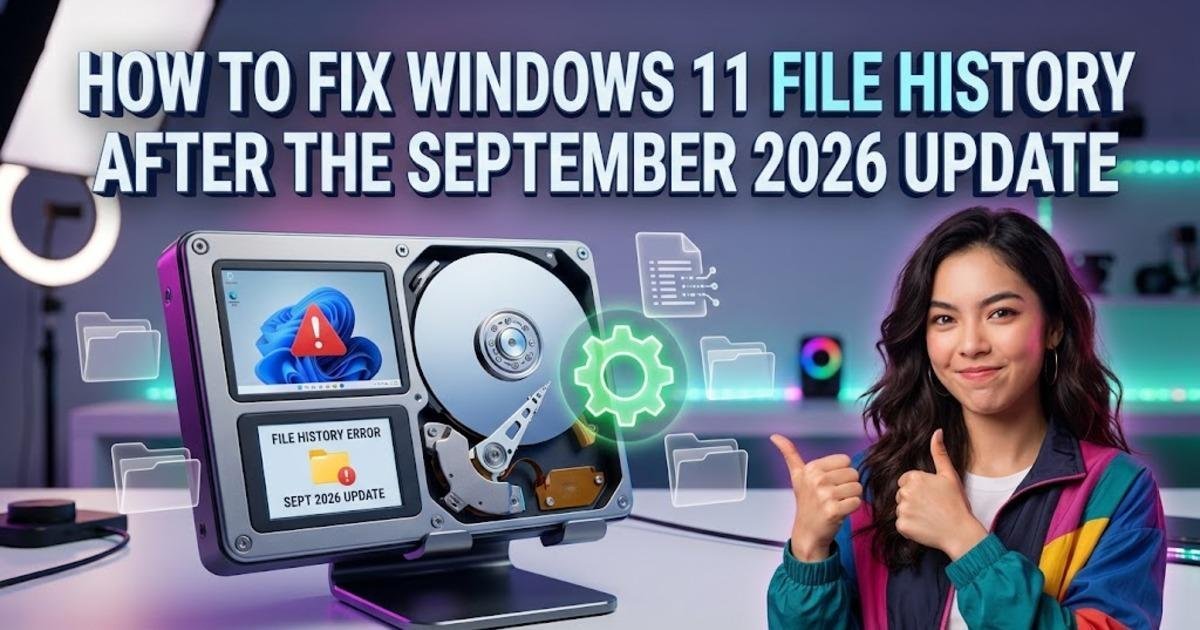
How to Fix Windows 11 File History After the September 2026 Update
Windows 11 File History can stop backing up after the September 2026 updates. Learn how to confirm the bug, protect your existing backups, and keep your files safe while Microsoft works on a fix.
On this page
File History can stop creating backups on some Windows 11 PCs after Microsoft's September 2026 security updates, even when the backup drive is connected and works normally in File Explorer. Microsoft confirmed the problem on September 19 and says it is working on a fix, but no permanent resolution has been released yet. Here is how to check whether your PC is affected, verify that the drive itself is not the problem, and keep your files protected while you wait.
First check whether the September update caused the problem
The easiest clue is timing. If File History worked before the September 2026 Windows update and stopped afterward, the update is a strong suspect, particularly on Windows 11 versions 24H2 and 25H2. Microsoft's documentation says affected users may see a "Reconnect your drive" message even though the configured drive is connected and usable. The Last Backup timestamp may also stop changing, while previously protected files can show that no previous version is available.
Open Settings > Windows Update > Update history and look for the September security updates. Windows 11 24H2 and 25H2 received KB5124008 on September 8, while Microsoft released the cumulative out-of-band update KB5129195 on September 14 to address several other problems introduced by that update. The later update does not currently resolve the File History problem, so installing KB5129195 should not be treated as the fix for this particular issue.
Make sure the backup drive itself is still working
Before blaming Windows, test the drive independently. Open File Explorer, browse to the backup drive and create a small test folder containing a copy of an ordinary file. Then open that copied file from the backup drive. If Windows can read and write files normally, the physical connection and basic drive access are working, which makes the File History-specific failure more plausible.
Do not format the drive or delete its existing File History folder while troubleshooting. Your older backup data may still be valuable even though the File History interface cannot currently create new backup versions. A Microsoft Q&A report from users experiencing this problem describes the same pattern: the drive remained readable and writable while File History incorrectly reported that it needed to be reconnected.
Check whether File History is actually creating new backups
Open Control Panel > System and Security > File History and check the backup status. The Windows 11 problem can be misleading because the interface may continue to show the configured drive while failing to create or update the backup. Microsoft says the Last Backup timestamp may remain unchanged, which gives you a more useful indication than simply seeing the drive listed.
If you normally rely on File History to protect Documents, Pictures, Desktop or other personal files, do not assume they are still being backed up because the drive is connected. Open the destination and check whether the expected File History data is receiving new versions. A backup system that reports a healthy-looking destination but has stopped updating needs to be treated as unavailable until a real backup can be verified.
Use Event Viewer to confirm the known failure pattern
Microsoft says affected systems may record application crash events involving FileHistory.exe and KERNELBASE.dll. Event Viewer is therefore useful when you want evidence that the failure is happening inside File History rather than at the storage-device level.
Press Windows + R, enter eventvwr.msc, and press Enter. In Event Viewer, inspect the Windows application events around the time a File History backup fails and look for entries mentioning those components. The absence of such an event does not prove that the drive or Windows update is unrelated, because Microsoft's documented symptoms are broader than a single Event Viewer signature.
Do not waste time rebuilding a healthy backup drive
A common reaction to the "Reconnect your drive" message is to remove and recreate the File History configuration, replace the drive or repeatedly reconnect the USB cable. Those steps make sense when Windows genuinely cannot access the storage device, but they do not address an operating-system bug. Microsoft's current description specifically says that affected systems can show the reconnect message even when a compatible backup drive is connected and functioning correctly.
That distinction can save you from destroying a perfectly good backup history. If ordinary file copying works and the problem began after the September updates, preserve the existing backup rather than treating it as corrupt without evidence.
Install the latest Windows update, but do not expect it to restore File History yet
Windows 11 24H2 and 25H2 received KB5129195 on September 14 as an out-of-band cumulative update. Microsoft released it to resolve several serious problems associated with the September security update, including Remote Desktop Services failures and host-folder sharing problems affecting some Hyper-V-based Linux virtual machines. It also includes the earlier security protections, so staying current matters even if it does not repair File History.
Go to Settings > Windows Update, install any newer update offered for your Windows version, restart the PC, and test File History again. Microsoft currently lists the File History failure as an unresolved known issue and says a future Windows update will provide the resolution. That means repeatedly repairing the drive, running system-file checks or reinstalling File History is unlikely to produce a permanent solution until Microsoft changes the affected Windows components.
Do not remove a security update just to restore File History unless you have a specific recovery plan. Community reports indicate that uninstalling the September update restored File History on some machines, but those are user reports rather than Microsoft's recommended resolution. Removing a cumulative security update also removes security fixes, and later cumulative updates can make the rollback situation more complicated.
Protect your files with a second backup while Microsoft works on the fix
The safest response to a broken File History installation is to stop depending on it temporarily. Copy your important documents, photos and other irreplaceable files to a separate storage location that you can verify independently. If you already use OneDrive or another backup service, check that it is actually synchronizing the folders you care about rather than assuming that having the application installed means the files are protected.
For a simple local fallback, you can also make a manual copy to another drive. The goal is not to recreate File History's versioning system; it is to make sure a Windows backup bug does not leave your only copy of important data on the PC. Keep the existing File History destination intact so that you can return to it if Microsoft restores the feature without requiring you to rebuild the history.
Know when File History is working again
Do not judge the repair solely by whether the File History window opens without an error. Start a backup, wait for it to complete, and then verify that the Last Backup timestamp changes. Next, check the destination for newly created or updated File History data and, where practical, test that an older version of a file can actually be recovered. That final test matters because a backup process is only useful if restoration works.
Microsoft's current status is straightforward: the September 2026 updates can prevent File History from creating or updating backups, and Microsoft is working on a future resolution. Until that resolution arrives, keep Windows security updates current, preserve your existing File History data, and maintain a separate verified copy of important files. When Microsoft publishes the permanent fix, install it and then confirm the backup by performing an actual test restore rather than relying on the File History status screen alone.
Written by