How to Use the New Tips Widget in Windows 11
Windows 11 is testing a new Tips widget that surfaces short guidance about built-in features. Learn how to add it to Widgets, use it on the lock screen, and remove it when needed.
On this page
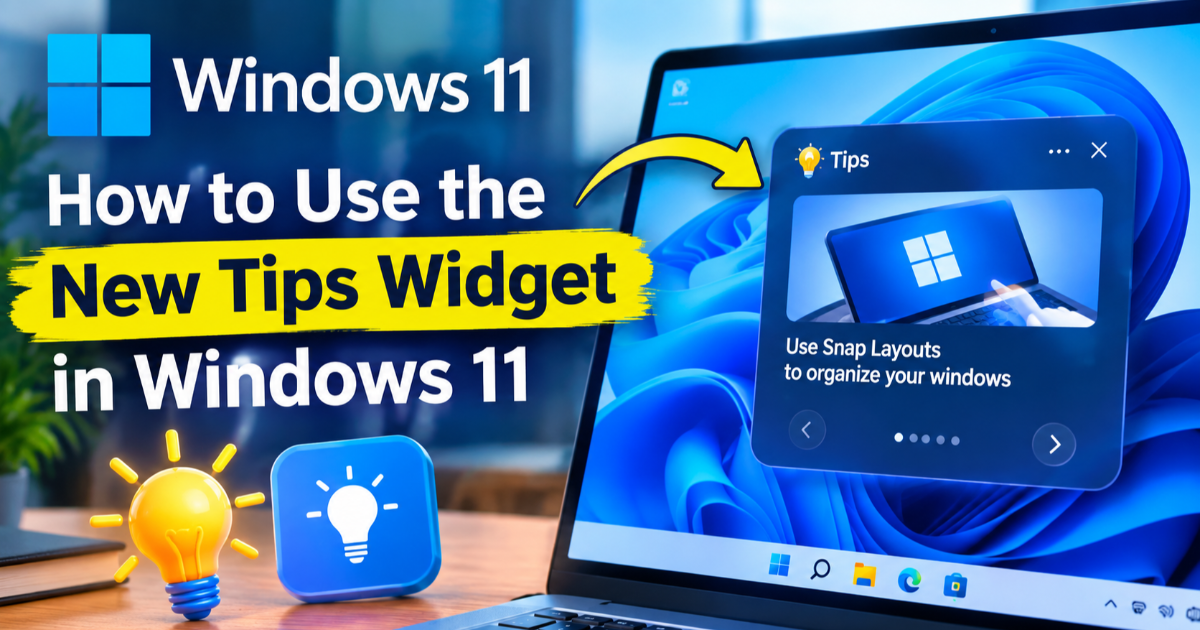
Windows 11 is adding a small feature that could make its growing list of settings and shortcuts easier to discover: a Tips widget. Microsoft introduced the widget in Windows 11 Release Preview build 26100.9539 and 26200.9539 on September 10, 2026, giving testers a way to see short guidance about Windows features directly from the Widgets experience. This guide explains how to add it, where it can appear, and how to use it without turning the Widgets board into another source of clutter.
What the new Tips widget is for
The Tips widget is designed to surface short pieces of guidance about Windows features instead of making users search through Settings or support pages every time they want to learn how something works. Microsoft describes it as providing short, helpful guidance about Windows features. That makes it different from the Discover area of Widgets, which is primarily a stream of personalized content such as news and other information.
The distinction matters because the Tips widget is meant to teach you how to use Windows itself. It can be useful after an update introduces a setting you have never seen before, or when you want to discover features without manually searching for them. It is still a preview feature, however, so its availability and exact content can change before a broader Windows release.
Check whether your Windows 11 build has the Tips widget
The feature is currently associated with Windows 11 Release Preview builds 26100.9539 and 26200.9539, covering Windows 11 versions 24H2 and 25H2. Release Preview is Microsoft's testing channel for builds that are closer to general release than many earlier Insider builds, but it is still a preview program rather than the normal stable Windows update channel.
- Open Settings. Press
Windows + Ito open Windows Settings. Result: the main Settings page appears. - Open Windows Update. Select Windows Update from the Settings navigation. Result: Windows displays your current update status and available updates.
- Check your Windows version. Open Settings, select System, then About, and look at the Windows specifications and OS build information. Result: you can compare your installed build with the Release Preview builds that introduced the Tips widget.
If your normal stable installation does not show the feature, that does not necessarily indicate a problem. Microsoft uses gradual rollouts for some Windows features, and preview features can be enabled for testing before they reach everyone. Do not install an Insider build on a work-critical computer simply to obtain the widget; the stable release is the safer choice for a machine that needs predictable behavior.
Add the Tips widget to the Windows 11 Widgets board
- Open Widgets. Press
Windows + Wto open the Widgets board. Result: the Widgets interface appears over your desktop. - Open the widget picker. Select the + button used to add widgets. Result: Windows displays the widgets available on your PC.
- Find Tips. Look through the available widgets for Tips. Result: the Tips widget appears as an available option if your build has received the feature.
- Add Tips. Select the option to add the Tips widget to your Widgets board. Result: a Tips card is added to the board.
- Return to the Widgets board. Close the widget picker and view your board. Result: the Tips card should remain with your other pinned widgets.
Microsoft's current Widgets documentation describes the same general workflow: the plus button opens the widget picker, where available widgets can be selected and added to the dashboard. Widgets are intended to provide quick information and actions without requiring you to launch the associated application or website. The Tips widget follows that model, but its content is focused on learning Windows features.
Keep the Tips widget where you will actually use it
Adding another card is only useful if you can find it quickly. Windows lets you rearrange widgets by dragging a widget header to another position within the pinned section, so place Tips near the top if you want to use it as a learning tool. You can also resize supported widgets from their three-dot menu, although the available sizes depend on the individual widget.
A sensible setup is to keep Tips beside widgets you already check regularly rather than filling the board with cards. For example, someone learning Windows 11 may keep Tips near Weather or another frequently used widget for a few weeks, then move or remove it once the guidance stops being useful. This turns the widget into a temporary learning aid instead of permanent interface noise.
Put Tips on the lock screen when available
Microsoft's September 10 release notes also say the Tips widget can be added to the Windows 11 lock screen. Windows already supports small lock-screen widgets, which can display information without requiring you to unlock the PC. The lock-screen widget system is separate from the full Widgets board, so only widgets that support the required small format can be added there.
- Open Lock screen settings. Go to Settings, then Personalization, then Lock screen. Result: Windows displays the lock-screen customization controls.
- Find the Widgets section. Review the widgets currently configured for the lock screen. Result: Windows shows the widgets that can appear before you sign in.
- Select Add widget. Choose the option to add another lock-screen widget. Result: Windows opens the catalog of widgets that support the lock-screen format.
- Select Tips if available. Add Tips from the available list. Result: the Tips widget is added to the lock-screen widget collection.
- Lock the PC and check the result. Press
Windows + L. Result: the lock screen should display the configured widget if the feature is supported and enabled on your build.
Microsoft's general lock-screen documentation confirms that widgets can be added, removed, rearranged, and customized from Settings > Personalization > Lock screen. It also says that only widgets supporting the small size can currently be added there. If Tips is available on your Widgets board but absent from the lock-screen picker, the most likely explanation is that the version you are running has not exposed it for that surface yet.
Remove Tips when it becomes distracting
The same feature that makes Tips convenient can make the Widgets board feel busy if you leave every card enabled. To remove the card, open Widgets, select the three-dot menu on the Tips widget, and choose Remove widget. Removing the card does not uninstall Windows or disable the entire Widgets system; it simply removes that widget from your board.
You can also remove Widgets from the taskbar if you do not want the entry point visible there. Microsoft says Widgets can still be opened with Windows + W even when the taskbar button is hidden. That gives users a useful middle ground: keep the underlying feature available while removing an icon that is taking up taskbar space.
Do not confuse Tips with Windows troubleshooting
The Tips widget is for discovering and understanding features, not for repairing Windows problems. If Windows Update fails, an application crashes, or a system component stops working, a Tips card should not be treated as a diagnostic tool. Microsoft provides separate troubleshooting workflows, including the Windows Update troubleshooter in the Get Help app for update-related problems.
That distinction is especially useful because Windows 11 is receiving more features through staged updates, and the name of a setting does not always tell you what it changes. Use Tips when you want to learn what Windows can do; use the appropriate troubleshooting or recovery tools when something is actually broken. Keeping those two jobs separate makes troubleshooting faster and reduces the temptation to change unrelated settings while trying to fix a problem.
What to expect as the Tips widget moves beyond preview
The September 10 release is evidence that Microsoft is testing Tips in Windows 11, not a guarantee that every Windows 11 PC will receive the feature immediately. Microsoft's release notes explicitly describe the Release Preview builds as using gradual and normal rollout phases, which means feature availability can vary between devices. Microsoft can also change the content or behavior during testing before the feature reaches general availability.
For users who already have the widget, the best approach is simple: add it, use it to learn features you actually need, and remove it when it stops providing value. For everyone else, there is no reason to chase an unstable preview build just for a small convenience feature. The useful part of Tips is not the widget itself; it is having short, contextual guidance available when Windows introduces another setting that would otherwise take several minutes to find.
Written by