How to Use Safari Notify Me in iOS 27
Safari in iOS 27 can monitor webpages and alert you when selected information changes. Learn how to set up Notify Me, choose a checking schedule, manage alerts, and troubleshoot missing options.
On this page
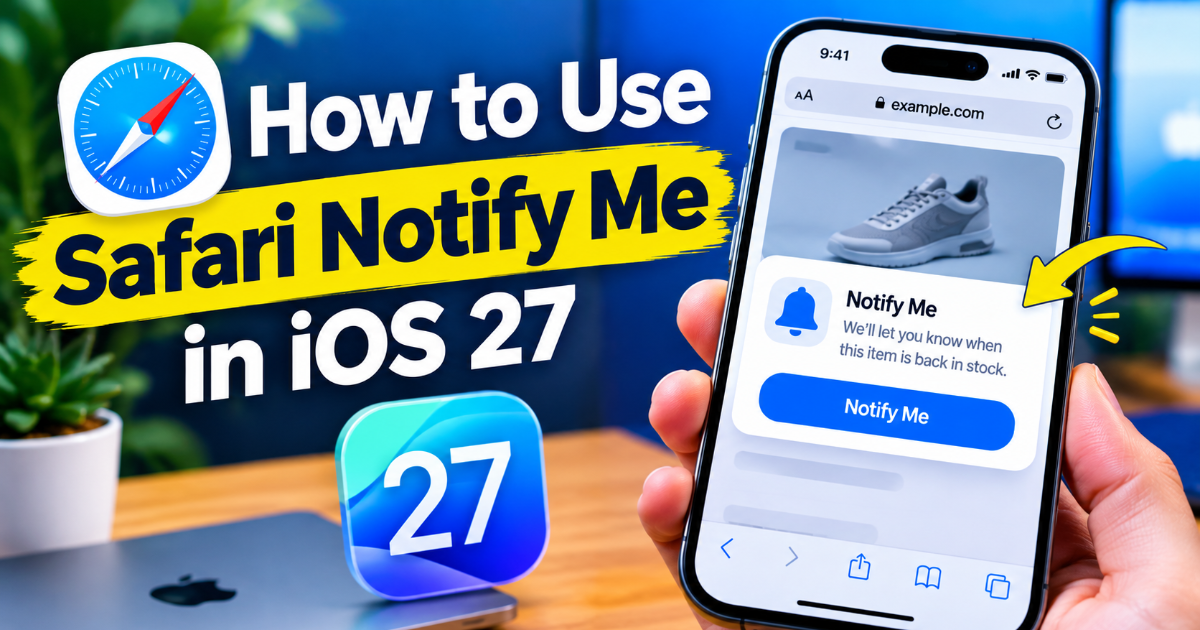
iOS 27 adds a useful Safari feature for anyone who repeatedly refreshes a webpage waiting for something to change. Notify Me lets Safari watch a webpage and alert you when the information you asked it to monitor changes, such as a product coming back in stock or tickets becoming available. This guide shows how to set it up, choose what Safari should watch, adjust the checking schedule, and remove an alert when you no longer need it.
What Safari Notify Me actually does
Notify Me turns a webpage into something you can monitor without repeatedly opening it yourself. Instead of checking a product page every few hours, for example, you can tell Safari what change matters and let the browser check the page for you. Apple lists the feature as part of the Apple Intelligence features in iOS 27, so availability depends on the device, language, and region supported by Apple Intelligence.
The useful distinction is that you are not simply subscribing to a website's own notification system. You are asking Safari to watch the content of a page for a particular change. Apple specifically demonstrates use cases such as price changes and product restocks, while other practical uses can include watching a page for new information or an availability change when the feature accepts that request.
Check that your iPhone supports Notify Me
Before looking for the option in Safari, update your iPhone to iOS 27. Apple released iOS 27 on September 14, 2026, and the update supports iPhone models going back to the iPhone 11 generation and the second-generation iPhone SE. However, Notify Me is listed under Apple Intelligence, so having iOS 27 alone does not guarantee access on every supported iPhone.
Apple Intelligence support is available on iPhone 15 Pro and iPhone 15 Pro Max, as well as iPhone 16 models and newer supported iPhones. Language and regional availability can also affect individual Apple Intelligence features. If Notify Me does not appear after updating, check the Apple Intelligence requirements for your device and language before assuming Safari is malfunctioning.
Open the webpage you want Safari to watch
- Update your iPhone to iOS 27. Open Settings, choose General, then Software Update and install the available update. Result: your iPhone should show iOS 27 under its software version after the installation finishes.
- Open Safari. Launch Safari from your Home Screen or App Library. Result: you should see the redesigned iOS 27 Safari interface.
- Open the page you want to monitor. Go directly to the webpage containing the information you care about, such as a product page that currently shows an item as unavailable. Result: the complete webpage should be loaded before you configure monitoring.
Choose the actual page containing the information rather than a site's general homepage. A specific product, ticket, registration, or announcement page gives Safari a much clearer target. If the page changes its layout frequently or hides important information behind another action, Notify Me may not be able to interpret the change reliably.
Set up Safari Notify Me
- Open the page menu. In Safari, tap the page settings or menu control beside the address bar. Result: Safari displays the available actions for the current webpage.
- Choose Notify Me. Tap Notify Me when it appears in the menu. Result: Safari opens the monitoring controls for that webpage.
- Describe what you want to watch. Enter a clear request describing the change you care about, such as an item becoming available again or a relevant change appearing on the page. Result: Safari should show the monitoring request it intends to use.
- Choose the checking frequency. Select the available schedule that suits the situation. Safari can check at intervals that include hourly, daily, weekly, or monthly monitoring. Result: the alert is configured around the schedule you selected rather than requiring you to refresh the page manually.
- Confirm the monitor. Save or confirm the Notify Me request. Result: the webpage becomes one of the sites Safari is monitoring and you can leave the page without repeatedly checking it.
The wording you enter matters. A request such as “Notify me when this product is back in stock” gives Safari a specific condition to look for. A vague instruction such as “Tell me when this page changes” gives the browser a much less precise target and may not produce the result you expect.
Use hourly checks when the timing matters
Safari's monitoring schedule is deliberately different from a continuous live feed. Apple says Safari can check a monitored webpage as often as once per hour, with longer daily, weekly, and monthly schedules also available. That means Notify Me is useful for catching a change without constant manual checking, but it should not be treated as an instant stock or ticket alert.
For something that could disappear quickly, choose the shortest available interval. For a webpage that changes infrequently, a daily or weekly schedule can reduce unnecessary checks. The practical choice depends on how quickly you need to know about the change rather than simply selecting the most frequent option every time.
Check and manage your active alerts
After creating several monitors, you may eventually want to change what Safari is watching or remove old requests. In iOS 27, Safari's Notify Me controls can be accessed through the iPhone's Safari settings, where active monitored websites can be reviewed and managed.
- Open Settings. Launch the Settings app on your iPhone. Result: the main settings categories appear.
- Open Apps and Safari. Tap Apps, then select Safari. Result: Safari's configuration options are displayed.
- Open Notify Me. Find and select the Notify Me section. Result: you can see the webpages currently being monitored.
- Select a monitored webpage. Tap the website you want to change. Result: its monitoring configuration becomes available for editing.
- Change or remove the alert. Adjust the monitoring request or delete it when you no longer need it. Result: Safari stops using the old configuration.
Why Notify Me is useful, and where it falls short
The biggest benefit is eliminating repetitive checking. If you are waiting for a product restock, an event registration, or another page update, manually refreshing the same page is wasted effort once the waiting period stretches into days. Notify Me moves that repeated task into Safari and gives you an alert when its monitoring condition is met.
There are limits, though. Safari is checking webpages on a schedule rather than maintaining a guaranteed real-time connection to every site. A website can also change its structure, restrict automated access, or present information in a way that makes a particular monitoring request difficult to interpret. For high-value purchases or time-sensitive ticket releases, a retailer's or event provider's own notification system may still be the better primary alert.
What to do when Notify Me does not appear
If you have installed iOS 27 but cannot find Notify Me, first confirm that your iPhone supports the required Apple Intelligence features. Then check the language and regional availability because Apple says some iOS 27 features are not available in every region or language. It is also worth confirming that Safari is displaying the current page normally rather than an error, incomplete page, or blocked content.
If the option appears on one webpage but not another, the difference may be related to the page rather than your iPhone. Try a straightforward product or information page where the change you want to monitor is clearly visible. If Safari still cannot create a useful monitor, use the website's own alerts instead of repeatedly refreshing the page.
Use Notify Me for tasks you would otherwise keep checking
Safari Notify Me is most useful when the information you want is already published on a webpage but you do not know when it will change. Set it up for a specific condition, choose a sensible checking frequency, and let Safari handle the routine checks. The feature is not a replacement for instant alerts from every website, but it can remove one of the more annoying smartphone habits: opening the same page again and again just to see whether something finally changed.
Written by