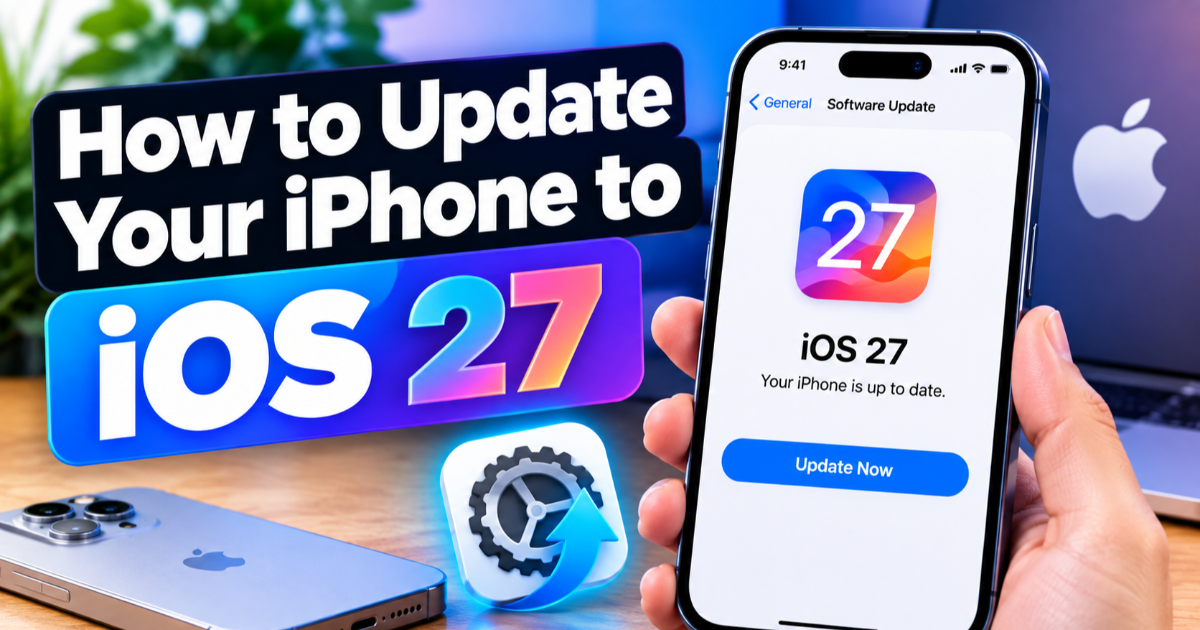
How to Update Your iPhone to iOS 27
iOS 27 is available from September 14, 2026. Learn how to check compatibility, back up your iPhone and safely install iOS 27 through Software Update.
On this page
iOS 27 is available from September 14, 2026, bringing new Siri AI capabilities, Safari improvements, visual intelligence features and other system changes to supported iPhones. If you want to install it today, the safest approach is to check compatibility first, back up your data, then use the built-in Software Update screen rather than relying on a beta profile or an unofficial download.
Check whether your iPhone supports iOS 27
Apple lists iOS 27 as compatible with iPhone 11 and later, including the iPhone 11 Pro, iPhone 12 family, iPhone 13 family, iPhone 14 family, iPhone 15 family, iPhone 16 family, iPhone 17 family and newer models. The second-generation iPhone SE and later are also supported. Compatibility with iOS 27 does not mean every new feature will be available on every model, because some capabilities depend on newer hardware or Apple Intelligence support.
Back up your iPhone before installing iOS 27
Before starting a major operating system upgrade, create a current backup using iCloud or a computer. A backup gives you a recovery point if the installation is interrupted or you later discover that an app or setting needs attention. Apple specifically recommends backing up the device before updating.
Connect to Wi-Fi and power
Connect the iPhone to a reliable Wi-Fi network and plug it into power before beginning the installation. A major iOS update can take time to download and install, and Apple recommends a power source and internet connection for wireless updates. Avoid starting the process when you are about to leave home or when the phone is needed for an important call.
How to update to iOS 27
Open Settings on your iPhone.
Tap General, then open Software Update.
Wait while the iPhone checks Apple's update servers. The screen shows your current iOS version and any update available for the device.
If iOS 27 is offered, tap Download and Install.
Enter your device passcode if requested and accept the onscreen terms.
Leave the iPhone connected to power while the update downloads and installs. The device will restart during installation.
Apple's standard wireless update process follows this same Settings > General > Software Update path. If iOS 27 does not appear immediately, that does not mean the phone is incompatible; first confirm the model and check again later.
What to expect after installing iOS 27
After the restart, open Settings > General > Software Update again and confirm that iOS 27 is installed. Apple says the release adds new Siri AI capabilities, including more natural conversational interaction, while Safari gains automatic tab organisation and a Notify Me feature that can monitor webpages for changes. iOS 27 also adds new visual intelligence capabilities and system performance refinements.
Why some iOS 27 features may not appear
An iPhone can be compatible with iOS 27 without supporting every feature shown in Apple's demonstrations. Apple Intelligence features have additional hardware, language and regional requirements, and Apple notes that availability can vary by device and location. For example, Apple's current iOS 27 information says Siri AI is rolling out in English, while some features are listed as coming in a future software update.
What to do if iOS 27 does not appear
First, make sure the iPhone is connected to the internet and has sufficient free storage. Apple identifies incompatible hardware, insufficient storage, slow downloads, connection problems and incomplete installations as common reasons an iPhone may fail to update. If wireless updating continues to fail, Apple also supports updating the device through a Mac or Windows computer.
Turn on automatic iOS updates
If you prefer not to check manually for every release, open Settings > General > Software Update > Automatic Updates. Apple provides options to automatically download updates and install them while the iPhone is charging and connected to Wi-Fi. Automatic updates are useful for keeping security fixes and future iOS releases from being postponed indefinitely.
If your iPhone supports iOS 27, the practical choice is to install it through Apple's built-in Software Update system rather than downloading configuration profiles or firmware from third-party websites. That keeps the installation tied to Apple's normal update process and gives you the safest path to the new release.
Share this post