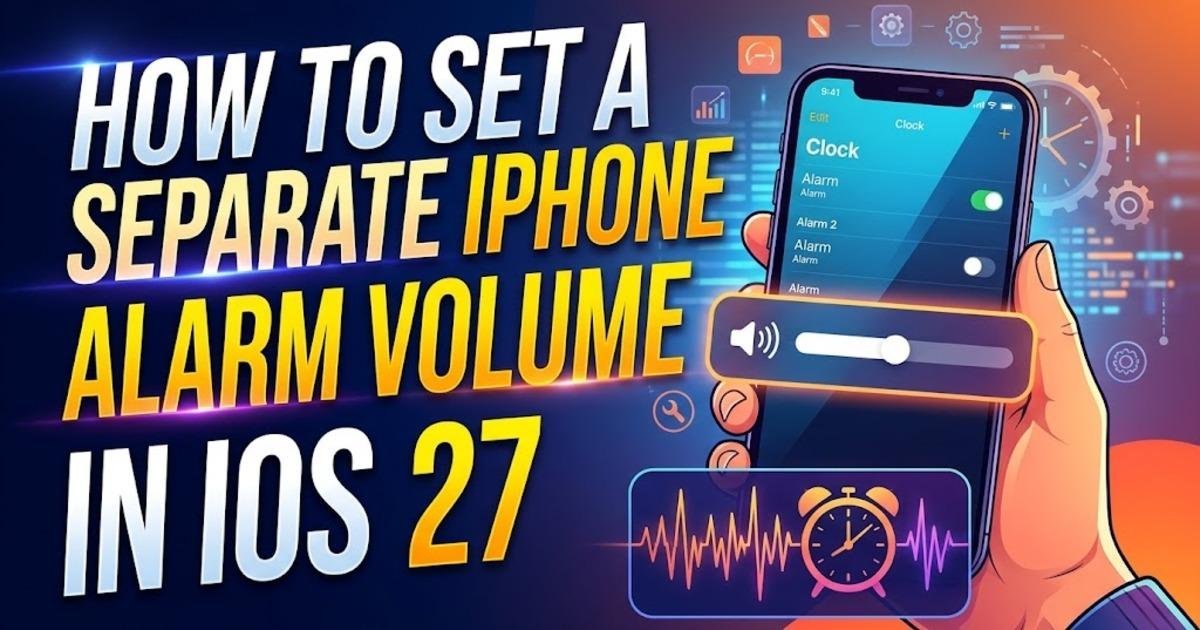
How to Set a Separate iPhone Alarm Volume in iOS 27
Learn how to separate alarm and timer volume from ringtone volume in iOS 27. Follow the settings steps, configure notification sounds, and troubleshoot alarms that remain too quiet.
On this page
Turning down your iPhone's ringtone before bed no longer has to mean risking a quieter morning alarm. In iOS 27, Apple lets you separate alarm and timer volume from ringtone volume, but the setting is not enabled by default. Here is how to configure it, adjust notification sounds independently, and avoid the settings that can make the change seem ineffective.
Why iPhone alarms now have their own volume control
Before iOS 27, iPhone users relied on a shared system volume setting for ringtones, alarms, timers, and many other system sounds. That could create an awkward trade-off: lowering the volume to avoid disturbing other people could also make a standard alarm quieter than intended. Raising the volume again meant dealing with louder incoming calls and other sounds throughout the day.
Apple's iOS 27 update introduces separate controls for three sound categories: Ringtone, Alarms and Timers, and Alerts and System Sounds. Each category can follow the ringtone volume or use its own slider. The change is optional, so existing behavior can remain in place if you prefer a single setting for these sounds. The feature is documented in Apple's iOS 27 guidance and is available on compatible iPhones running the updated operating system.
Check that your iPhone is running iOS 27
Before changing the volume, check which version of iOS your phone uses. Open Settings, tap General, and select About. Look for the iOS version entry; if your phone is running an earlier release, the separate volume controls described here may not be available.
If an update is needed, return to Settings, open General, and tap Software Update. Install iOS 27 if it is offered for your device, following the on-screen instructions. Back up important information before a major update, and make sure the phone has sufficient battery power or is connected to a charger. Apple lists the iPhone 11 series, iPhone 12 series, iPhone 13 series, iPhone 14 series, iPhone 15 series, iPhone 16 series, iPhone 17 series, supported iPhone 18 models, and iPhone SE (second generation and later) among compatible devices.
Turn off Match Ringtone Volume for alarms and timers
Once iOS 27 is installed, the first task is to disconnect the alarm volume from the ringtone setting. Open Settings and select Sounds & Haptics. Scroll until you find the Alarms and Timers section, where the Match Ringtone Volume option controls whether these sounds follow the ringtone level.
- Open the Settings app on your iPhone.
- Tap Sounds & Haptics.
- Find the Alarms and Timers section.
- Turn off Match Ringtone Volume.
- Use the newly available volume slider to choose the level you want for alarms and timers.
Turning off the matching option should reveal a dedicated slider. Move it to the right for louder alarms or to the left for quieter ones. The phone's ringtone can now remain at a different level, so you can keep incoming calls audible during the day without having to use the same setting for your morning alarm.
Choose an alarm level without making your ringtone louder
The right volume depends on where you keep your phone and how you use alarms. If your iPhone sits on a bedside table, a moderate setting may be sufficient; if it is farther away or competing with background noise, you may need a higher level. Adjust the slider gradually and listen to the preview if one is provided by your current software version. Avoid assuming that the highest setting is necessary simply because the old shared control made it difficult to find a comfortable balance.
For example, you might want a quiet ringtone during work meetings but a louder alarm for waking up. With Match Ringtone Volume disabled, you can set those levels independently instead of repeatedly changing the same slider. The alarm setting remains in place when you adjust the ringtone, which makes it easier to maintain a consistent morning routine.
Separate notification and system-sound volume too
iOS 27 also provides independent control over Alerts and System Sounds. This category covers sounds such as incoming text notifications, keyboard clicks, and the camera shutter, rather than media playback from music and video apps. If you want quieter notifications without changing the volume of your calls or alarms, you can configure this category separately.
- Open Settings and tap Sounds & Haptics.
- Scroll to Alerts and System Sounds.
- Turn off Match Ringtone Volume in that section.
- Adjust the slider that appears to your preferred level.
You can leave this second matching option enabled if you only want to separate alarms and timers. The two controls are independent, so changing the alarm setting does not require changing notification sounds. This is useful when you want a loud morning alarm, a quieter text notification, and a ringtone that remains easy to hear.
Understand which alarms are affected by the setting
The separate slider applies to standard alarms and timers, but it does not replace every volume control on the iPhone. Apple's documentation distinguishes Wake-Up alarms and other alarms that have their own volume controls from the regular Alarms and Timers setting. If you use a sleep schedule, check the volume option associated with your Wake-Up alarm rather than assuming that the new system slider controls it.
To check a sleep-schedule alarm, open the Clock app and go to Alarms. Select Change for the Wake-Up alarm associated with your sleep schedule, then look for the Alarm volume control in its options. Adjust that level separately if necessary. This distinction matters because an ordinary Clock alarm and a scheduled Wake-Up alarm may respond to different settings.
It is also worth remembering that the new controls do not provide an individual volume slider for every alarm you've created. They offer broader sound categories, which means standard alarms and timers share their category's chosen level. If one alarm needs to behave differently, check the options available for that particular alarm instead of expecting the system-wide slider to manage each one independently.
Fix the problem if your alarm is still too quiet
If your alarm remains quieter than expected, return to Sounds & Haptics and verify that Match Ringtone Volume is actually disabled under Alarms and Timers. Then check the dedicated slider, rather than relying on the physical volume buttons to make the change. Depending on the settings, the buttons may adjust media or ringtone volume without changing the separate alarm level.
Next, confirm which alarm you are testing. A regular Clock alarm uses the general Alarms and Timers setting, while a scheduled Wake-Up alarm has its own volume control. Also check that the alarm has a sound selected instead of a sound option that produces no audible alert. A separate volume slider cannot compensate for an alarm configured without an audible sound.
Finally, test a standard alarm or short timer while the phone is in a normal operating state. Do not wait until the next morning to discover that the level is unsuitable. Once you have verified that the alarm sounds at the intended volume, leave the dedicated setting in place and adjust the ringtone independently whenever your daily routine requires it.
When keeping the original shared volume makes sense
Not everyone needs separate sound levels. If you prefer all system sounds to rise and fall together, leave Match Ringtone Volume enabled in the relevant sections. That preserves the familiar behavior and avoids having to remember which category controls a particular sound.
For people who frequently silence their ringtone at night, however, the separate alarm control removes a recurring source of uncertainty. Set the alarm volume once, test it before relying on it, and make changes in Sounds & Haptics rather than assuming the side buttons control every sound. That small adjustment is particularly worthwhile if a dependable morning alarm matters more than keeping every sound on the phone at the same level.
Share this post