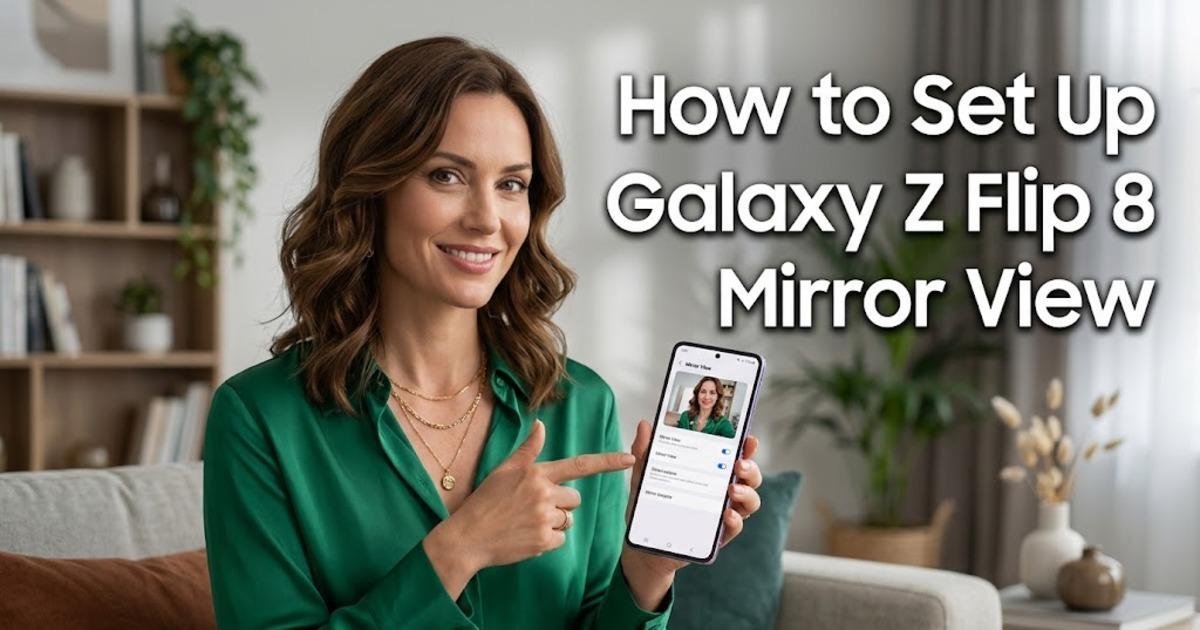
How to Set Up Galaxy Z Flip 8 Mirror View
Turn the Galaxy Z Flip 8's FlexWindow into a digital mirror with Camera Assistant. This guide covers setup, shortcuts, zoom, freeze, lighting and hands-free use.
On this page
The Galaxy Z Flip 8 can turn its outer FlexWindow into a live digital mirror, but the feature is easy to miss because it lives inside Samsung's Camera Assistant rather than the regular camera settings. Mirror View is currently exclusive to the Galaxy Z Flip 8 and requires Android 17 with One UI 9 or later. Once enabled, you can check your appearance, zoom into details, freeze the view, add edge lighting, or leave the folded phone on a surface for a hands-free check.
Check the Galaxy Z Flip 8 requirements first
Mirror View is not a general Galaxy feature that appears on every recent Samsung phone. Samsung currently lists it as a Galaxy Z Flip 8 feature, and the phone needs Android 17 with One UI 9 or later. The feature is provided through Camera Assistant, Samsung's companion app for additional camera controls, and Samsung notes that availability can vary by country or region. If you are using another Galaxy model, installing Camera Assistant will not add Mirror View to it.
The software requirement matters because the setting is tied to the Flip 8's FlexWindow, the small outer display used while the phone is folded. If your Flip 8 has not received the required software, the Mirror View option may not appear where the instructions below expect it. Check for available system updates before troubleshooting the camera app itself.
Install Camera Assistant from the Camera settings
Open the Camera app on your Galaxy Z Flip 8 and open its settings. Look for Camera Assistant; if it is not already installed, use that option to download it. Camera Assistant contains extra camera controls that Samsung keeps separate from the main Camera interface, which is why searching the ordinary camera modes for Mirror View can lead you in circles.
After Camera Assistant is installed, open it and scroll through its available settings. Find Mirror view and switch it on. Samsung's own setup instructions also let you open the Mirror View settings and configure its launch methods at this point, so you do not have to return to Camera Assistant later when you want quicker access.
Turn on the shortcut you will actually use
Mirror View can be opened in three ways, so choose the one that matches how you expect to use it. You can enable a lock-screen launch option on the FlexWindow, assign quick launch to the side button, or open the Camera app and select Mirror View from Quick Controls. The first two options are useful when you want to check your appearance without unfolding the phone or navigating through the camera interface.
A double press of the side button is particularly convenient when the phone is already in your hand. The lock-screen option is different: it lets you access the camera shortcut directly from the outer display while the Flip 8 remains folded. You do not need either shortcut for Mirror View to work, but setting one up removes several taps when you need a quick check.
Open Mirror View on the FlexWindow
Once the feature is enabled, launch Mirror View using your chosen shortcut. The FlexWindow then shows a live reflection rather than behaving like an ordinary selfie preview. Samsung says the reflection can run at up to 120 frames per second, which is intended to make the movement feel closer to looking at a physical mirror than watching a conventional camera preview.
This distinction is useful because Mirror View is designed for checking yourself before taking a photo or simply checking your appearance. You are not required to take a picture just because you opened it. You can use the display to inspect your hair, clothing or another small detail and close the feature when you are finished.
Zoom in when the detail is too small to see
Mirror View supports the familiar camera gestures for examining a specific area more closely. Double-tap the FlexWindow or use a pinch gesture to zoom in. This can be useful when the phone is positioned at a normal arm's length and you need to inspect something that is difficult to see in the full reflection.
The zoom control is also available when you freeze the current view. That makes the feature more useful for detailed checks because you can hold a particular frame instead of trying to keep the phone perfectly still while looking closely at the display.
Freeze the reflection when you need a steady view
Tap the Freeze control when you want to hold the current frame. The live reflection stops moving, giving you a fixed image to inspect. You can still use the zoom gesture on the held frame, so there is no need to keep the phone positioned at exactly the same angle while checking a detail.
This is different from taking a normal photograph. The purpose of the control is to temporarily hold what Mirror View is showing, not to create a new image in your gallery. When you are finished checking the frame, return to the live view and continue using the mirror normally.
Use edge lighting when the room is too dark
Mirror View includes an edge-lighting control that brightens the area around the FlexWindow. Samsung describes it as a way to add clarity when checking your reflection, making it particularly relevant in dim surroundings. It does not turn the cover display into a conventional camera flash; instead, the display itself provides the additional illumination around the viewing area.
Samsung has also promoted the feature for use in darker conditions, but that should not be confused with a guarantee that it will make every environment equally easy to see. The practical result depends on how much ambient light is available and how close you are to the phone. If the reflection is still difficult to see, moving to a brighter position can make a bigger difference than relying entirely on the edge lighting.
Set the Flip 8 down for a hands-free mirror
The Flip 8's folding design gives Mirror View another useful option. Partially fold the phone into Flex Mode and place it on a stable, flat surface while Mirror View is running. Because the phone can support itself in a partially folded position, you can use the FlexWindow without continuously holding the device.
This is where Mirror View differs from simply opening a camera selfie preview. The foldable body becomes part of the setup, letting you position the phone at a convenient angle while keeping both hands free. It is useful for a quick appearance check before leaving, especially when there is no physical mirror nearby.
Do not confuse Mirror View with Flip Shot
Samsung includes another Flip 8 feature called Flip Shot, and the similar names can make the two easy to confuse. Mirror View is for viewing a live reflection on the FlexWindow. Flip Shot is a camera feature that lets you customize the FlexWindow background with pictures, drawings or text while taking a mirror selfie.
The easiest way to remember the difference is that Mirror View helps you check yourself, while Flip Shot changes the presentation of a photo you are taking. You can use Mirror View first to check your appearance and then use Flip Shot if you want a customized background in the resulting selfie. They are related to the same outer display, but they solve different problems.
What to check if Mirror View is missing
If Mirror View does not appear, start with the three things that determine whether the feature should be available: the phone model, the software version and Camera Assistant. Samsung currently identifies the Galaxy Z Flip 8 as the supported device and requires Android 17 with One UI 9 or later. Make sure Camera Assistant is installed and check whether the Mirror View option appears after opening its settings.
If everything appears correct but the option is still missing, do not assume that the hardware is faulty. Samsung states that feature availability can vary by country or region, so regional availability is one possibility. Check Samsung's current software and support information for your market before resetting camera settings or changing other system options.
Written by