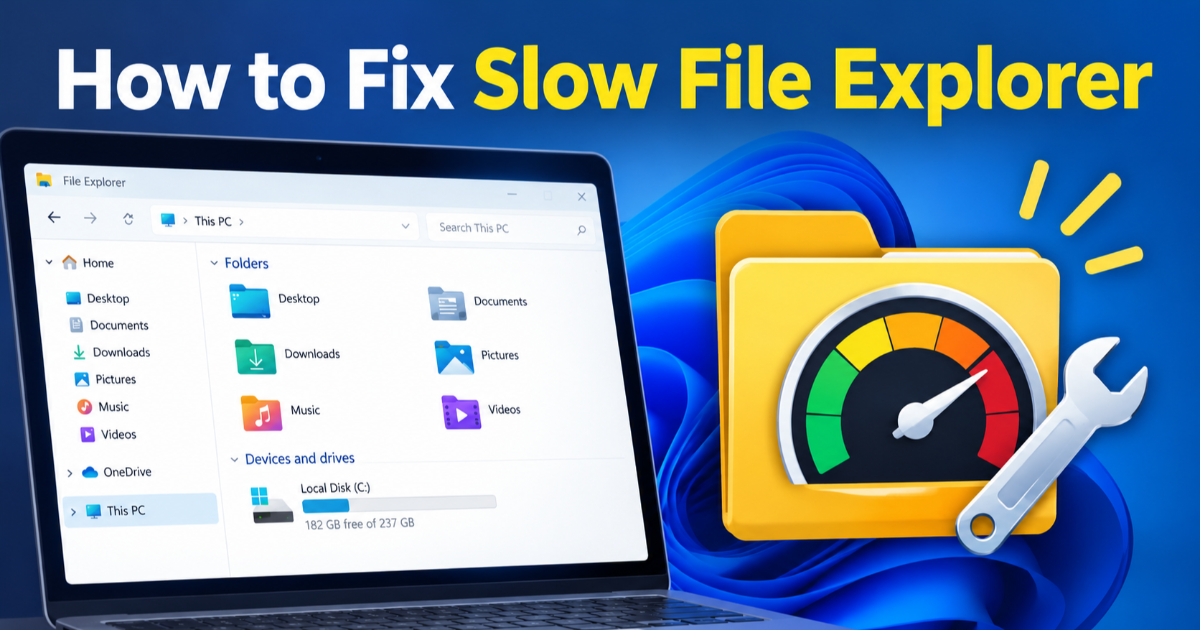
How to Fix Slow File Explorer in Windows 11
File Explorer can slow down because of cloud syncing, startup software, low storage, corrupted system files, or third-party integrations. These steps help identify and fix the cause in Windows 11.
On this page
If File Explorer takes several seconds to open a folder, hangs while loading files, or becomes sluggish after right-clicking, the problem is usually not Windows 11 itself. Background startup apps, cloud synchronization, damaged system files, low storage, or a problematic folder can all add delays. Microsoft is also continuing work on File Explorer responsiveness, but you can troubleshoot the common causes yourself before waiting for a future update.
Start by finding out where File Explorer slows down
Before changing Windows settings, check whether the slowdown affects every folder or only a particular location. Press Windows + E and open a simple local folder such as Documents. Then try another folder containing many files, a OneDrive folder, and any mapped network drive you use. If local folders are fast but a network or cloud folder is slow, changing Windows system settings may not solve the underlying problem.
Also watch what happens when you right-click a file or folder. A delay that appears specifically on the context menu can point toward software that has added commands to File Explorer. Antivirus tools, compression utilities, cloud-storage clients, graphics software, and other desktop applications can integrate with the context menu and affect its response.
Restart File Explorer before changing anything else
A stuck File Explorer process can make the whole interface feel slow even when the rest of Windows is working normally. Right-click the Start button and open Task Manager, then find Windows Explorer in the process list. Select it and choose Restart. The taskbar and open File Explorer windows may briefly disappear and return.
This does not repair the underlying cause, but it is a useful first test. If File Explorer becomes responsive immediately and then slows again later, a background process or an Explorer extension may be involved. If the problem remains after restarting Explorer, continue with the deeper checks below.
Check whether cloud folders are causing the delay
Cloud storage can make a folder behave differently from an ordinary local directory. OneDrive files may be stored locally or kept online-only, which means Windows can need network access before certain content is available. Microsoft also allows Storage Sense to manage locally available cloud content under specific conditions.
Test this by opening a normal local folder and then a folder inside OneDrive. If only the OneDrive location is slow, temporarily pause synchronization and test again. Do not randomly delete the OneDrive folder or its contents. If the problem appears to be with the OneDrive client itself, resetting the client is a more appropriate troubleshooting step than removing files manually.
Free up space on the Windows drive
A nearly full system drive can create broader performance problems, particularly when Windows has little room for temporary files and other system operations. Open Settings > System > Storage and inspect how the space is being used. Windows 11 can show categories such as temporary files, installed applications, and system storage.
Storage Sense can automatically remove certain unnecessary files, including temporary data and eligible Recycle Bin contents. It does not normally remove files from Downloads or cloud storage unless you configure those options, so review the settings before enabling more aggressive cleanup. The goal is to create usable space, not simply to delete as much data as possible.
Reduce unnecessary apps that run at startup
A computer can feel like File Explorer is the problem when the real issue is too much software running in the background. Open Settings > Apps > Startup and review the applications that launch when you sign in. You can also use Task Manager's Startup apps section, which shows the measured startup impact for many applications.
Disable applications you do not need immediately after signing in, but leave security software and components required by hardware or business applications alone unless you know what they do. Restart Windows after making changes and test File Explorer again. If the slowdown disappears, re-enable items selectively to identify the application responsible.
Repair Windows system files if Explorer still freezes
Persistent Explorer problems can sometimes come from damaged Windows components. Microsoft recommends running Deployment Image Servicing and Management (DISM) before System File Checker (SFC) when repairing corrupted system files.
Open Command Prompt as administrator and run:
DISM.exe /Online /Cleanup-image /RestorehealthWait for the operation to complete, then run:
sfc /scannowSFC checks protected Windows system files and can replace damaged copies. Do not close the Command Prompt window while the scan is running. Restart Windows after the repairs finish and check whether File Explorer behaves normally.
Use a clean boot to find conflicting software
If File Explorer works normally after a restart but becomes slow once your usual software is running, a clean boot can help isolate the conflict. Windows clean boot starts the system with essential drivers and startup programs while allowing you to disable third-party services and startup items for testing.
Search for msconfig and open System Configuration. On the Services tab, select Hide all Microsoft services before disabling the remaining services. Then open Task Manager from the Startup tab and disable the enabled startup applications. Restart and test File Explorer.
If the problem disappears in the clean-boot environment, re-enable services and startup applications in groups until the slowdown returns. That gives you a practical way to identify the conflicting program instead of disabling everything permanently.
Test the folder that causes the slowdown
Sometimes File Explorer itself is healthy and the problem is the folder being opened. A directory containing thousands of files, large media collections, network locations, or files that require thumbnail generation can take longer to display than a simple folder.
Compare the problematic folder with an almost empty local folder. If only one directory is consistently slow, move a small batch of files to a temporary local folder and test again. For media-heavy directories, changing how Windows displays thumbnails and previews can also help determine whether file preview processing is responsible.
Install Windows updates before deeper repairs
Microsoft has been actively working on File Explorer performance and reliability. In an August 2026 Windows Insider update, the company said it was working to reduce hangs and delays and improve responsiveness in File Explorer and the context menu. That work is particularly relevant if your problem is a general Explorer delay rather than a single damaged folder or third-party application.
Check Settings > Windows Update and install available updates appropriate for your Windows installation. Avoid installing an Insider build solely because you are experiencing a performance problem unless you specifically want preview software and understand its risks. A stable Windows installation with current updates is the better starting point for troubleshooting a production machine.
Know when the problem is probably not File Explorer
If applications across Windows are freezing, folders take a long time to open from every program, or disk usage remains unusually high, investigate the wider system rather than focusing only on Explorer. Check Task Manager for sustained CPU, memory, or disk activity and identify the process responsible. Hardware problems, failing storage, insufficient memory, or a problematic driver can produce symptoms that look like an Explorer issue.
The most useful troubleshooting order is therefore simple: restart Explorer, compare local and cloud or network folders, check free storage, reduce unnecessary startup software, repair Windows components, and use a clean boot if the cause remains unclear. This sequence starts with low-risk checks and progressively moves toward more invasive troubleshooting, giving you a better chance of finding the actual cause without randomly changing Windows settings.
Written by