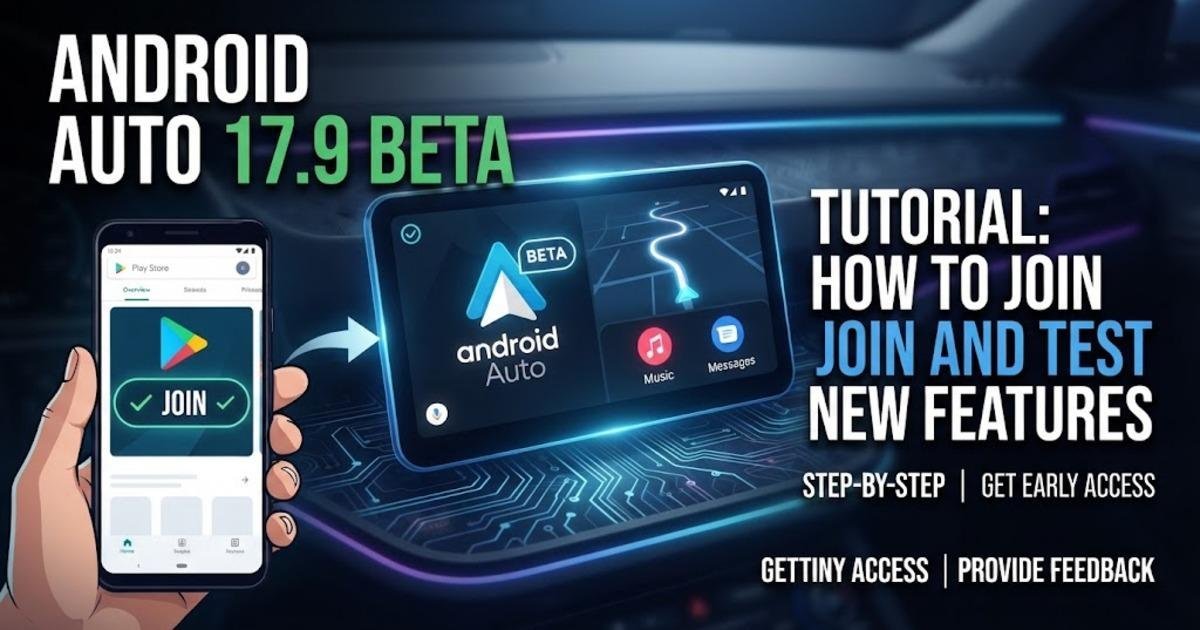
Android Auto 17.9 Beta Tutorial: How to Join and Test New Features
Learn how to join the Android Auto 17.9 beta, update through Google Play, test the build safely, report problems, and leave the beta channel.
On this page
Android Auto 17.9 beta began rolling out at the start of October 2026, giving testers an early build while Google prepares more changes for its in-car platform. The release itself does not come with a public changelog, but analysis of the beta has found references to possible Proactive Assistance, also known as Magic Cue, along with other work that Google has not yet announced as a finished feature. If you want to test Android Auto before those changes reach the stable channel, this guide shows how to join the official beta, update safely, check that you received the test build, and leave the program when you need a stable version.
What Android Auto 17.9 beta actually gives you
Android Auto is the system that brings compatible phone apps and functions such as navigation, calls, messages and media to a compatible car display. Google’s beta program provides early access to Android Auto updates before their general release, but Google also warns that beta versions can be less stable and that some features may not work correctly. That distinction matters with 17.9 because the most interesting changes currently reported from its files are potential future features rather than confirmed features that every beta tester can use today. Treat the build as a test version, not as a guaranteed preview of the final Android Auto experience.
Why Android Auto 17.9 is getting attention
The notable discovery in Android Auto 17.9 is code pointing toward Proactive Assistance, the Pixel feature previously known as Magic Cue. APK analysis found strings related to getting Gemini suggestions in the car and managing the proactive assistant, but the same reporting makes clear that Google may change, delay or remove unfinished functionality before public release. In other words, installing 17.9 does not mean you can switch on Magic Cue today. The useful reason to test the beta is that you will receive the underlying app builds earlier and can report problems while Google continues development.
Check whether the Android Auto beta is open
Google controls access to the Android Auto beta separately from ordinary app updates, so the program can be full even when a new beta build exists. Open the official Android Auto beta testing page while signed in with the Google account used on your Android phone and look for the option to become a tester. If Google reports that the program is full, you cannot force your account into the program through Android Auto settings; Google advises checking the official beta page again when spaces become available.
Join the Android Auto beta step by step
Open a browser on your phone or computer and sign in to the Google account you use with Android Auto.
Open Google’s Android Auto beta testing page and review the testing information.
Select Become a tester if Google is accepting new participants. A successful enrollment means your account has joined the beta channel rather than merely updating the normal Android Auto app.
Open the Google Play Store on your Android phone after enrollment and check for an Android Auto update.
Install the available beta update. Google says beta participants receive early Android Auto builds through Google Play, although an update may not appear immediately after enrollment.
Connect the phone to your compatible car after the update and check that Android Auto starts normally. If everything works, you are ready to test the beta in ordinary use.
How to check that you are actually testing the beta
Do not assume that joining the tester program instantly changes the installed application. Google notes that you may need to wait for the beta update to become available through Google Play. Check the Android Auto app's Play Store page and install the pending update before testing. If no beta update is offered, remaining enrolled does not necessarily mean there is a new build ready for your device at that moment.
What you should test in Android Auto 17.9
Start with the functions you already depend on rather than hunting for hidden features. Test your normal wired or wireless connection, navigation, calls, messaging, media playback and the Android Auto launcher, then check whether the car display remains responsive after several minutes of use. If your vehicle uses a wide or unusual display layout, also pay attention to whether media controls and navigation remain positioned correctly. This gives Google more useful feedback than simply reporting that the beta feels different, because it connects a problem to a specific function and vehicle setup.
Do not treat hidden 17.9 features as finished
The most important limitation of Android Auto 17.9 is that code found inside a beta is evidence of development, not a product announcement. The reported Proactive Assistance references may eventually become a working feature, but Google has not confirmed that every related component will ship in the public version. This also means you should not change your daily driving setup because you expect a particular Gemini feature to appear after installing 17.9. Use the beta for testing the version that actually installs, and treat reports about unreleased functionality as a look at what Google may be preparing.
How to report a problem without doing it while driving
Google provides a feedback mechanism for Android Auto beta testers, and you do not need to enable Developer Mode to send a beta bug report. When the phone is connected to the vehicle, you can touch and hold the status area for several seconds and then complete the feedback process from the phone. Google specifically says to handle this when it is safe to do so, not while driving. A useful report should identify what you were doing, what you expected to happen, what actually happened, and whether the problem can be reproduced.
How to leave the Android Auto 17.9 beta
If Android Auto is essential to your daily driving, returning to the stable channel is straightforward when you no longer want to test pre-release software. Use Google’s official Android Auto beta page to select Leave the program, then follow Google Play's instructions for returning to the public version. Google says only one Android Auto version can be installed on a phone at a time, so leaving the program moves you out of the beta channel rather than letting both versions run together.
Android Auto 17.9 is therefore most useful to people who want to test upcoming changes and accept the possibility of bugs, not people who need the most predictable version for every drive. The Proactive Assistance references make the build worth watching, but they remain unfinished until Google actually enables and documents the feature. For now, join through the official beta program, update through Google Play, test the functions you use most, and report reproducible problems before deciding whether to remain on the beta channel.
Written by