How to Turn On USB Protection on Android 17
Learn how USB Protection works on supported Android 17 phones, how to enable it through Advanced Protection, and what happens to USB data, charging, and Android Auto.
On this page
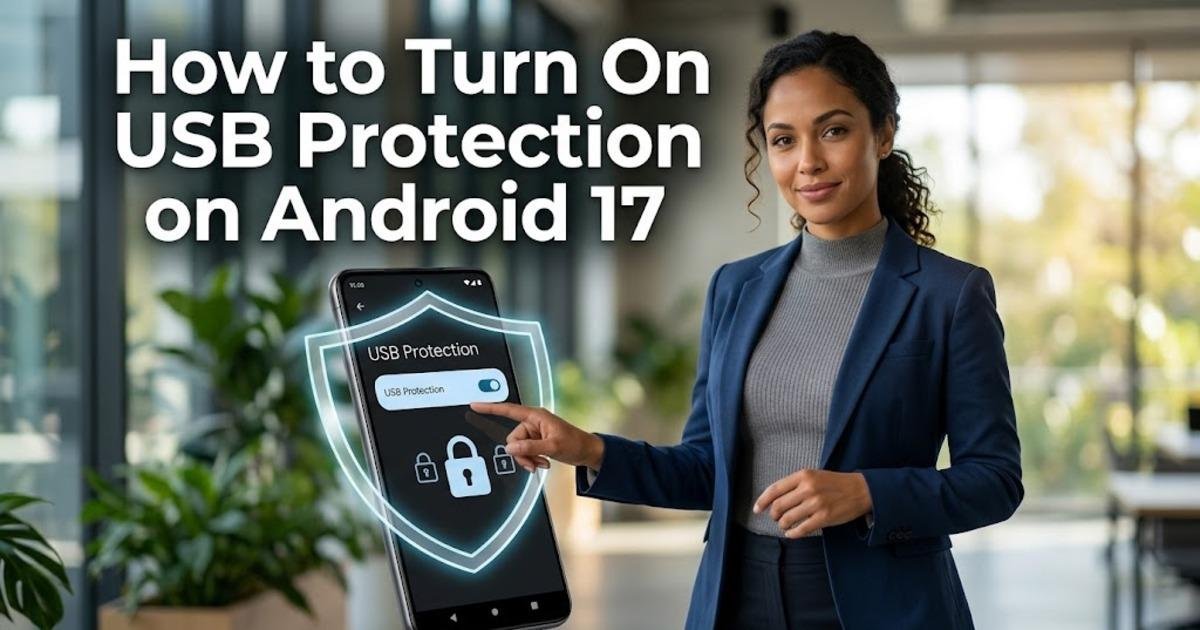
Google expanded Android’s Advanced Protection on October 1, 2026, and one of the most practical additions is USB Protection: on supported phones, a new USB connection is blocked from transferring data while the screen is locked. The phone can still charge, but you must unlock it before allowing a new USB data connection.
What USB Protection actually blocks
USB Protection is designed to reduce the risk of someone gaining access to a locked phone through a physical USB connection, including potentially malicious accessories or charging hardware. When protection is active, a newly connected USB device cannot establish a data connection while the phone remains locked, so the connection defaults to charging until you unlock the device.
There is an important distinction between new and existing connections. If you connect your phone to a laptop while it is unlocked and then lock the screen, that existing USB data connection remains active. The protection applies when a new connection is attempted while the device is already locked. Charging itself continues to work, although Google warns that fast charging may sometimes require the phone to be unlocked.
Check whether your Android phone supports it
Google currently lists USB Protection for Pixel 6 and newer devices, as well as selected Android 17 devices from other manufacturers. Availability can therefore depend on both the Android version and the phone's hardware implementation. Google also warns that manufacturers may implement USB support differently, so the exact behavior can vary between devices.
Turn on USB Protection through Advanced Protection
USB Protection is not normally a separate switch that you turn on by itself. On supported devices, enabling Device protection inside Advanced Protection automatically enables USB Protection. That means the setup starts in Android's security settings rather than in the USB preferences.
Open Settings. Launch the Settings app on your Android phone and open Security & privacy.
Open Advanced Protection. Under the other security settings, tap Advanced Protection. Google also provides an alternative route through Google settings: open Google, tap All services, then find Advanced Protection under Personal and device safety.
Enable Device protection. On the Advanced Protection page, turn on Device protection. Android may ask you to confirm the change and, on some devices, restart the phone before all protections become active.
Complete the setup. Follow the prompts shown by your phone. Advanced Protection can activate several security controls together, so you may see additional options during setup, including the optional Intrusion Logging feature. USB Protection itself does not require you to configure a separate USB switch when Device protection supports it.
Unlock the phone before a new USB data connection. Once USB Protection is active, connect a USB device while the phone is locked. A new data connection should require you to unlock the phone before data transfer can begin, while charging can continue.
What happens when you connect a USB cable
The easiest way to understand the feature is to test the two connection states separately. First, lock the phone and then connect a computer or other USB device. USB Protection should prevent a new data connection until you unlock the screen. After unlocking, Android can allow the USB data connection according to the normal USB behavior of the device.
Now try the reverse. Connect the phone to a computer while it is unlocked and establish a data connection, then lock the screen. Google says an existing USB data connection remains active after the screen locks. This matters for workflows such as transferring photos or using wired Android Auto, because USB Protection is primarily preventing new connections to a locked device rather than abruptly terminating every connection already in use.
USB Protection does not protect every USB scenario
USB Protection is deliberately tied to the locked state of the phone. If you connect a USB device while the screen is already unlocked, this particular protection does not block that connection. The feature also does not provide protection during the early boot process before the device has completed starting up.
There can also be a short delay when the screen locks. Google says the delay is intended to account for loose ports or unreliable cables before the USB data connection is disabled. This means the protection is not an instantaneous physical disconnect at the exact moment the screen goes dark.
Why Android 17 users should understand the trade-off
Advanced Protection is designed as a bundle of stronger security controls rather than a collection of completely independent switches. Google says Android 17 expands that bundle with protections such as restricting accessibility services to verified accessibility tools and disabling WebGPU in Chrome while Advanced Protection is active. USB Protection is therefore one part of a broader security mode, not an isolated USB setting.
The practical trade-off is straightforward: a locked phone becomes harder to access through a newly connected USB device, but some USB-based workflows can require an unlock first. Google specifically notes that USB implementations vary between manufacturers and that fast charging can sometimes require the screen to be unlocked. If a USB accessory behaves differently after enabling protection, check whether the connection was established while the phone was locked and whether your particular device supports the feature fully.
How to tell that USB Protection is working
The most useful test does not involve transferring sensitive files. Lock the supported Android phone, connect it to a computer with a USB cable, and check whether Android requires you to unlock the phone before establishing a new data connection. Then disconnect it, unlock the phone, reconnect it, and compare the behavior. A supported configuration should allow the new connection after authentication while keeping the locked-state restriction in place.
If the option is missing entirely, do not assume the feature is broken. Google currently limits USB Protection to Pixel 6 and later and selected Android 17 devices, and its documentation notes that hardware implementations can affect how USB behavior works. Checking the phone model, Android version, and available Advanced Protection settings is the first troubleshooting step.
What to do if USB access suddenly stops working
If a computer or accessory worked before you enabled Advanced Protection but now fails while the phone is locked, unlock the phone before reconnecting or authorizing the USB data connection. This is expected behavior when USB Protection is active, not necessarily a damaged cable or USB port. Google has also documented that existing connections can remain active after the screen locks, so reconnecting while unlocked can produce different results from plugging in after the phone is already locked.
For most users, the key setting is therefore simple: enable Advanced Protection's Device protection on a supported phone, then remember that a locked device will no longer freely accept new USB data connections. The feature is most useful when the phone is unattended or someone else could physically access its USB port, and the next step is to verify how your own USB accessories behave before relying on the protection.

Written by