How to Turn On Motion Assist on Android 17
Android 17 includes Motion Assist for passengers who experience motion sickness while using their phones in a moving vehicle. Learn how to enable, automate, and customize it.
On this page
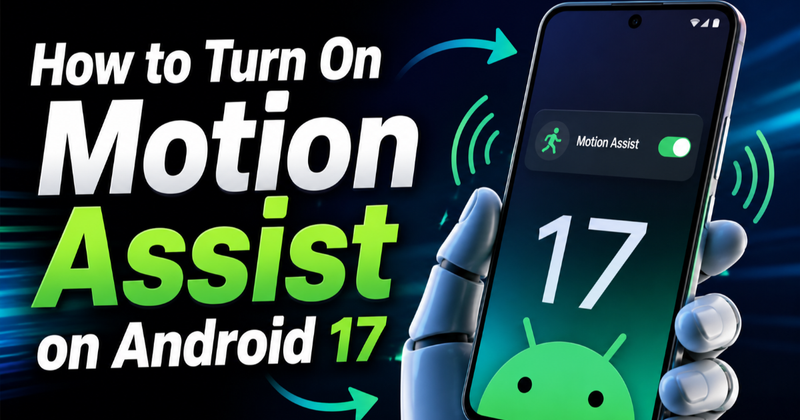
If using your phone in a moving car makes you feel sick, Android 17 now has a setting designed specifically for that problem. Motion Assist puts small visual bubbles around the edges of the screen and moves them with the vehicle, giving your eyes a motion cue that can make phone use more comfortable. Here is how to turn it on, make it automatic, and adjust how it looks.
What Android Motion Assist actually does
Motion Assist uses your phone's motion sensors to detect changes such as turning, accelerating, and braking. It then moves subtle bubbles along the edges of the display in response to that movement. The idea is to give your visual system information that better matches what your body is already feeling, rather than making your eyes focus on a screen that appears stationary.
Google says Motion Assist requires Android 17 or higher and updated Google Play Services. It is intended for passengers, not drivers, and Google warns that it may not work for everyone. A small number of people may even experience worse symptoms, so stop using it if it makes you uncomfortable.
Check that your phone supports Motion Assist
Before looking through every settings menu, check your Android version. Open Settings, find the section that shows your Android version, and confirm that the phone is running Android 17 or newer. You should also make sure Google Play Services is up to date because Motion Assist depends on it.
If your phone meets those requirements but you cannot find Motion Assist, the feature may not yet be available on your particular device or software build. The quickest check is to use the Settings search box and type Motion assist. If no matching setting appears, updating the phone and Google Play Services is the sensible first step.
Turn on Motion Assist from Settings
Once the feature is available, you can enable it directly from Android's settings. The exact appearance of the menus can vary slightly between phone manufacturers, but Google's current instructions use the following path.
- Open the Settings app.
- Tap your profile, then select All services.
- Under Personal & device safety, tap Motion assist.
- Turn Motion Assist on from its settings page.
You should now have access to the visual motion bubbles. If you regularly use your phone as a passenger, there is a better option than remembering to switch the feature on manually every time you travel.
Make Motion Assist start automatically in a car
Motion Assist can detect when your phone is in a moving vehicle and start automatically. On the Motion Assist settings page, turn on Start in a moving vehicle. Your phone will then attempt to activate the visual cues when it detects vehicle movement.
Automatic detection is convenient, but Google says the phone may not always recognize that you are travelling in a vehicle. For that reason, adding a manual Quick Settings control is useful as a backup. It gives you a fast way to start or stop Motion Assist without opening Settings.
Add Motion Assist to Quick Settings
Open the Motion Assist settings page and tap Add tile to Quick Settings. Android lets you choose between a small and large tile. After adding it, swipe down from the top of the screen whenever you need quick access to the feature.
This setup is particularly useful for passengers because you can leave automatic activation enabled while still having a manual control available. If automatic detection does not trigger during a journey, the Quick Settings tile gives you another way to turn it on.
Change the Motion Assist bubbles to suit your screen
The visual cues are not locked to one appearance. From the Motion Assist settings, select Customize to change their opacity, color theme, and shape. You can also enable randomization, which changes the color and shape periodically.
Opacity controls how visible the bubbles are, so a lower setting can make them less distracting while you read. The color and shape options are mainly about personal preference. Android also provides a live preview while you customize the appearance, making it easier to find a setting that remains noticeable without becoming the main thing you see on screen.
Use it as a passenger, not while driving
Motion Assist is designed for people using a phone while riding in a vehicle. It should never be used as a reason to look at a phone while driving. The visual cues are intended to help reconcile what your eyes see with the movement your body feels; they are not a safety system and cannot replace attention to the road.
It is also worth treating the feature as an experiment rather than a guaranteed cure for motion sickness. If you still feel sick, feel worse after enabling it, or find the moving bubbles distracting, turn Motion Assist off. The goal is to make passenger phone use more comfortable, not to force you to keep using a setting that does not suit you.
What to do if Motion Assist is missing
If you cannot find the setting, start by confirming that the phone runs Android 17 or later. Next, update Google Play Services and search for Motion assist directly inside Settings. If the option is still absent, your device may not have received the feature yet, even though it is supported by the required Android version.
Once Motion Assist appears, the most practical setup is to enable automatic activation, add the Quick Settings tile, and adjust the bubble opacity until the cues are visible without becoming distracting. That gives you both hands-off activation and a manual fallback when Android does not detect the vehicle correctly.
Written by