How to Enable Gemini Personal Intelligence in Android Auto
Google's Gemini Personal Intelligence is rolling out to Android Auto. Learn how to enable connected apps, test personalized voice requests, manage privacy, and troubleshoot missing settings.
On this page
Gemini can now help Android Auto users find information buried in their own Google accounts, not just answer general questions. Announced on October 20, 2026, Google's Personal Intelligence rollout lets eligible users ask about flight details in Gmail, appointments in Calendar, and places remembered from Google Photos without searching through those apps while driving. This guide explains how to enable the feature, choose which apps it can access, test useful voice commands, and review the privacy trade-offs before connecting your personal data.
What Personal Intelligence changes in Android Auto
Previously, asking a voice assistant for directions generally meant naming a destination or providing enough information for it to find one. Personal Intelligence gives Gemini additional context from supported Google services, allowing it to retrieve relevant details and use them to answer a more natural request. For example, you can ask for directions to an appointment without remembering its address, provided Gemini can access the relevant information. Google says the rollout began on Android Auto on October 20, while cars with Google built-in are expected to receive the capability in the coming months.
With your permission, Gemini can connect to Google Workspace services, including Gmail and Google Calendar, along with Google Photos, Google Maps, YouTube, and Search. The practical difference is that a request can involve several sources rather than requiring you to open one app, find a detail, and then use another app to act on it. Google describes examples such as finding a flight gate from an email, checking flight status, and navigating to a place identified in an earlier photo. These are Google's stated capabilities; their usefulness will depend on the information available in your account, the permissions you grant, and whether the feature has reached your device.
Check whether your Google account is eligible
Before changing settings, check that you use a personal Google account and that the feature is available to your account. Google's October 20 announcement says Personal Intelligence is rolling out to eligible personal accounts belonging to people aged 18 or older. Workspace business, enterprise, and education accounts are excluded, as are users in the European Economic Area, Switzerland, the United Kingdom, and Nigeria. Although Google describes the rollout as global, that does not mean every account receives access immediately or that every connected service is available in every region.
You also need a working Android Auto setup, a compatible phone, and an active connection for online Gemini features. Depending on your vehicle and phone configuration, some features require mobile data, Bluetooth, or notification permissions. Keep your phone's Gemini app updated and use the Google account whose calendar, email, or photos contain the information you want to retrieve. If the Personal Intelligence option is missing, do not assume that reinstalling Android Auto will fix it; staged availability or account eligibility may be the reason.
Enable Personal Intelligence in the Gemini app
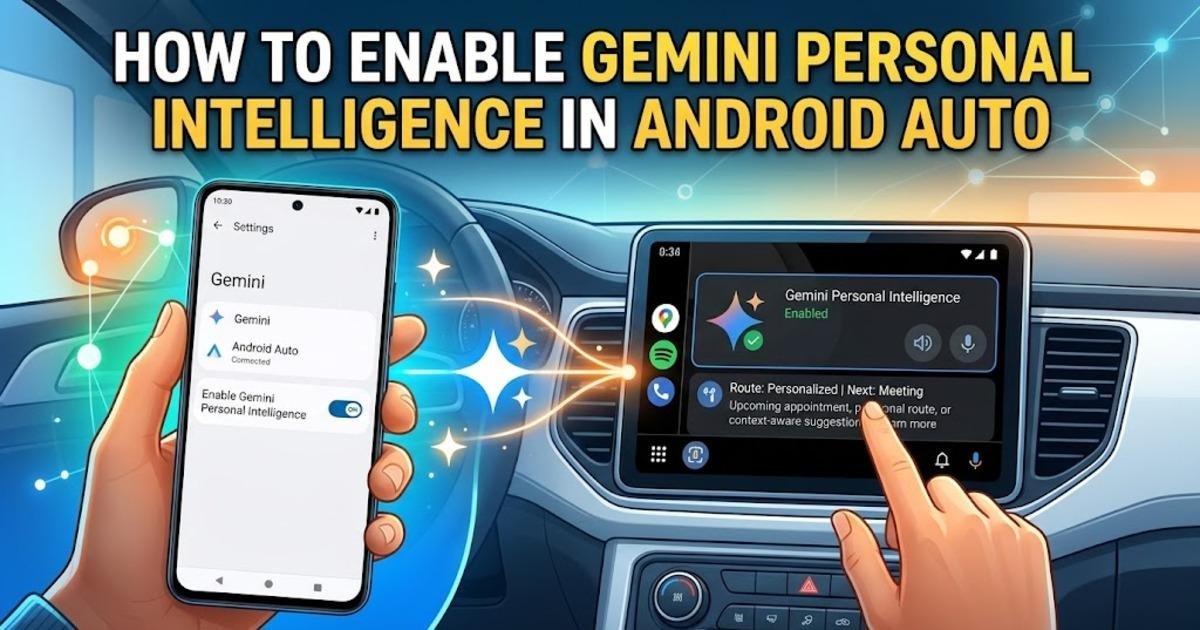
The first place to check is Gemini on your phone, because Google says existing Personal Intelligence settings carry over to Android Auto. Open the Gemini app, open your profile menu, and enter Settings. Look for Personal Intelligence and its connected-app controls; the exact wording and placement may vary with the app version. If the feature is available, review the listed services and choose which ones Gemini may use rather than enabling every connection automatically.
- Open the Gemini app on your phone and select your profile menu.
- Open Settings and find Personal Intelligence, if it is available for your account.
- Open the connected-app settings.
- Review each available service, such as Gmail, Calendar, Photos, Maps, YouTube, or Search.
- Enable only the connections you actually want Gemini to use, then return to the main app.
For a first test, connecting Calendar may be enough if your main goal is finding appointments. Gmail can help with information contained in booking confirmations, while Photos may be useful for remembering places from pictures. The available controls and supported integrations can vary, so do not assume every service listed in Google's announcement will be selectable for every account. You can leave Personal Intelligence disabled and continue using ordinary Gemini features in the car.
Connect your phone and try a real voice request
Once your settings are in place, connect your phone to Android Auto using your vehicle's supported wired or wireless connection. Start a journey only when it is safe to do so, then activate Gemini using the voice control available in your car, such as saying “Hey Google” or using the steering-wheel voice button. Begin with a straightforward request that relies on information you know is present in a connected app. For example, if you have a calendar event with a location, ask Gemini to take you to your next appointment.
After the first request works, try a question that needs information from two sources. Google's published example is asking for a flight gate and whether the flight is on time, combining information from an email with flight information. You could also ask Gemini to find a place shown in a recent photo and start navigation, provided the relevant photo is accessible and the feature supports that request for your account. These examples illustrate the intended workflow, but they should not be treated as a guarantee that every request will succeed on every device.
A practical test sequence
- Ask for directions to a named appointment in your calendar.
- Confirm that Gemini has identified the correct event and destination before following the route.
- Ask a question that depends on a detail in a connected email, such as a flight confirmation.
- Check the answer against the original information when parked.
- If a request fails, verify the connected app, account, and availability before changing several settings at once.
Do not read, type, or troubleshoot on your phone while the vehicle is moving. Voice interaction reduces the need to handle the screen, but it does not remove the need to watch the road. Treat any retrieved address, appointment, or travel detail as something to verify when safe, especially if a wrong answer could send you to the wrong destination or cause you to miss a departure.
Review connected apps before sharing personal information
Personal Intelligence is a meaningful change to what a voice assistant can access, so review its permissions with the same care you would give any app connection. Gmail may contain booking details, work correspondence, receipts, and private conversations; Google Photos can reveal places you visit and people you know. Connecting a service gives Gemini additional information to draw on when answering requests, so convenience should be weighed against the type of information stored in that service. If you do not need personalized answers, leaving the feature off is a valid choice.
Google says connected apps are not linked until you choose to enable Personal Intelligence, and that you can turn it off in Gemini settings. The company also says that cars with Google built-in provide personal responses only when your phone is connected to the vehicle. That distinction matters because a vehicle with Google built-in runs Google's services within its own infotainment system, whereas Android Auto projects supported phone features onto the car's display. The rollout timing and available controls differ between these two arrangements.
There is another consideration: a spoken answer may be audible to passengers, and information shown on the car's display may be visible to them as well. Avoid asking for sensitive email or calendar details when others can hear the response. If your car is shared with family members or colleagues, review which Google account is connected before a trip and disable access to services that are not needed. Permission controls reduce unnecessary access, but they do not guarantee that every response will be free of personal information.
Turn the feature off or troubleshoot missing settings
If you decide the personalized responses are not worth the extra access, return to Gemini's Personal Intelligence or connected-app settings and disable the relevant connections or the feature itself. Standard Android Auto functions, including navigation, music, calls, and general questions, remain available without personalized answers. If the feature does not appear, first check that you are using an eligible personal account and that the rollout has reached it. Updating the app may help with an outdated installation, but it cannot guarantee access to a feature that has not yet been enabled for your account.
If Gemini gives an incorrect answer, confirm that the right Google account is active and that the source information is present in a connected service. Check that the appointment contains a usable location, or that the email includes the relevant booking details, before assuming the assistant has a technical fault. For navigation problems, verify the destination on the car display before proceeding. A personalized assistant can reduce the steps needed to retrieve information, but it remains an assistant rather than a substitute for checking important travel details.
What Android Auto users should do next
Google's October 20 announcement marks the start of the rollout, not a promise that every eligible driver will see the same options immediately. Check your Gemini settings now, decide which services genuinely help with driving-related tasks, and test one low-risk request before relying on the feature for time-sensitive information. If you use a car with Google built-in instead of Android Auto, watch for the separate rollout expected in the coming months. The best setup is the one that makes useful information easier to retrieve without granting access to more of your personal data than you need.
Share this post

Written by