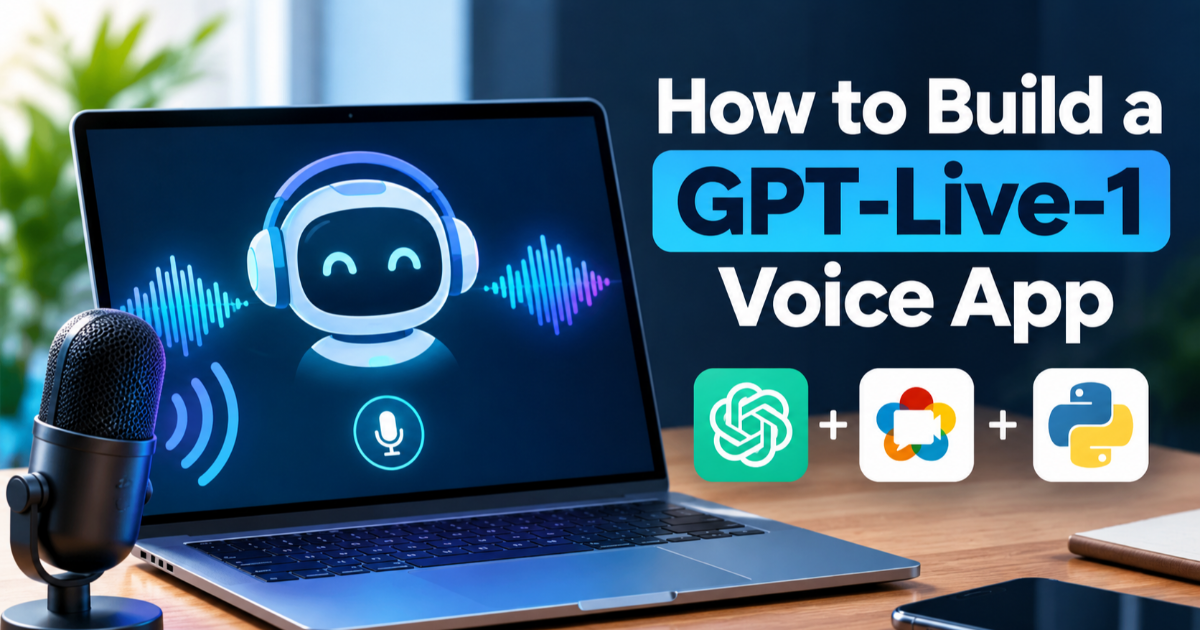
How to Build a Voice App with GPT-Live-1
Build a browser-based voice assistant with GPT-Live-1, WebRTC, and a secure Python backend. Learn how full-duplex audio, backend delegation, and tool use fit together.
On this page
A voice assistant normally has to move audio through several separate systems: speech recognition, a language model, and text-to-speech. OpenAI's GPT-Live-1 changes that setup by handling listening and speaking as a full-duplex conversation, so the model can keep listening while it talks and react when the user interrupts. GPT-Live-1 became available in the OpenAI API on September 10, 2026, and this tutorial shows how to build a small browser voice app with WebRTC and a server-side API key.
Why GPT-Live-1 changes the usual voice architecture
In a traditional voice application, the microphone first produces audio for a speech-to-text service. The resulting text goes to a language model, and another service converts the answer back into speech. Each boundary introduces another request, another piece of state, and another opportunity for the conversation to lose its timing.
GPT-Live-1 puts the conversational voice layer into one model. It can listen and speak at the same time, handle interruptions, recognize pauses and short acknowledgements, and provide both speech transcripts and response text. When a request needs deeper reasoning or tools, the Live session can delegate that work to a backend model instead of forcing the voice layer to do everything itself.
For developers, the practical difference is architectural. You can let GPT-Live-1 manage the fast back-and-forth while a backend model handles tasks such as web search, database operations, or more complicated reasoning. OpenAI currently lists the voice layer at $0.05 per minute, billed by the second, while backend model and tool usage are charged separately.
What you need before starting
You need an OpenAI API key, Python 3.12 or newer, the current OpenAI Python SDK, and a browser that supports WebRTC and microphone access. WebRTC is a browser communication standard designed for real-time audio and video, which makes it a natural fit for a browser-based voice application.
The important security rule is simple: keep the API key on your server. The browser should send its WebRTC session description to your application server, and the server should use the protected key to create the GPT-Live-1 session. Never place the permanent API key in JavaScript that is delivered to the browser.
Create the small Python server first
Start a new project and install the OpenAI SDK. The current Live API support is included in the modern OpenAI Python package, so there is no separate voice package to maintain.
mkdir gpt-live-demo
cd gpt-live-demo

python -m venv .venv
.venv\Scripts\activate

pip install openai python-dotenv
On macOS or Linux, activate the environment with source .venv/bin/activate instead. Then create a .env file and keep the key there during local development.
OPENAI_API_KEY=your_api_key_hereThe server has one important job: accept the browser's Session Description Protocol offer, send it to the Live API together with the session configuration, and return the resulting WebRTC answer. Session Description Protocol, usually called SDP, is the description WebRTC uses to negotiate how two endpoints will communicate.
Configure GPT-Live-1 and its backend
Create server.py with a small HTTP endpoint. The example below uses Responses delegation so the voice model can hand more demanding requests to a backend model. The backend can also use web search, which is useful when the caller asks for information that should not be answered from the model's existing knowledge.
import json
import os
from http.server import BaseHTTPRequestHandler, ThreadingHTTPServer

from dotenv import load_dotenv
from openai import OpenAI

load_dotenv()

client = OpenAI()
HOST = "127.0.0.1"
PORT = 3000


class Handler(BaseHTTPRequestHandler):
    def send_json(self, status, data):
        body = json.dumps(data).encode("utf-8")
        self.send_response(status)
        self.send_header("Content-Type", "application/json")
        self.send_header("Content-Length", str(len(body)))
        self.end_headers()
        self.wfile.write(body)

    def do_POST(self):
        if self.path != "/api/session":
            self.send_json(404, {"error": "Not found"})
            return

        length = int(self.headers.get("Content-Length", "0"))

        if length <= 0 or length > 65536:
            self.send_json(400, {"error": "Invalid request"})
            return

        try:
            payload = json.loads(self.rfile.read(length))
            sdp = payload.get("sdp")

            if not isinstance(sdp, str) or not sdp.strip():
                self.send_json(400, {"error": "An SDP offer is required"})
                return

            result = client.live.create(
                session={
                    "model": "gpt-live-1",
                    "instructions": (
                        "You are a helpful voice assistant. "
                        "Keep spoken answers concise and natural. "
                        "Delegate requests that need current information "
                        "to the backend."
                    ),
                    "delegation": {
                        "type": "responses",
                        "responses": {
                            "model": "gpt-5.6-terra",
                            "instructions": (
                                "Use web search when current information "
                                "is required. Return concise, grounded "
                                "answers suitable for spoken conversation."
                            ),
                            "tools": [
                                {"type": "web_search"}
                            ],
                            "tool_choice": "auto"
                        }
                    }
                },
                transport={
                    "type": "webrtc",
                    "sdp": sdp
                }
            )

            self.send_json(201, result.model_dump())

        except Exception as error:
            print(error)
            self.send_json(
                502,
                {"error": "Live session creation failed"}
            )


if __name__ == "__main__":
    print(f"Open http://{HOST}:{PORT}")
    ThreadingHTTPServer((HOST, PORT), Handler).serve_forever()
The important part is client.live.create(). The session selects gpt-live-1, while transport tells the API that the browser is using WebRTC and supplies its SDP offer. The response contains a session identifier and the SDP answer that the browser needs to finish the connection.
Connect the browser microphone with WebRTC
Now create an index.html file. The browser creates an RTCPeerConnection, adds the microphone as an audio track, and creates a data channel for Live API events. The application server then exchanges the SDP offer for OpenAI's SDP answer.
<!doctype html>
<html lang="en">
<head>
  <meta charset="utf-8">
  <meta name="viewport" content="width=device-width, initial-scale=1">
  <title>GPT-Live-1 Demo</title>
</head>

<body>
  <button id="start">Start conversation</button>
  <button id="stop" disabled>Stop conversation</button>
  <p id="status">Disconnected</p>

  <script>
    const startButton = document.getElementById("start");
    const stopButton = document.getElementById("stop");
    const status = document.getElementById("status");

    let peer;
    let events;
    let microphone;

    startButton.addEventListener("click", async () => {
      try {
        status.textContent = "Connecting...";

        peer = new RTCPeerConnection();

        peer.ontrack = event => {
          const audio = new Audio();
          audio.srcObject = event.streams[0];
          audio.autoplay = true;
        };

        microphone =
          await navigator.mediaDevices.getUserMedia({
            audio: true
          });

        for (const track of microphone.getAudioTracks()) {
          peer.addTrack(track, microphone);
        }

        events = peer.createDataChannel("oai-events");

        events.addEventListener("message", event => {
          const data = JSON.parse(event.data);

          if (data.type === "session.started") {
            status.textContent = "Connected";
            startButton.disabled = true;
            stopButton.disabled = false;
          }

          if (data.type === "session.closed") {
            status.textContent = "Disconnected";
            cleanup();
          }
        });

        const offer = await peer.createOffer();
        await peer.setLocalDescription(offer);

        await new Promise(resolve => {
          if (peer.iceGatheringState === "complete") {
            resolve();
            return;
          }

          peer.addEventListener(
            "icegatheringstatechange",
            () => {
              if (peer.iceGatheringState === "complete") {
                resolve();
              }
            }
          );
        });

        const response = await fetch("/api/session", {
          method: "POST",
          headers: {
            "Content-Type": "application/json"
          },
          body: JSON.stringify({
            sdp: peer.localDescription.sdp
          })
        });

        if (!response.ok) {
          throw new Error(await response.text());
        }

        const result = await response.json();

        await peer.setRemoteDescription({
          type: "answer",
          sdp: result.transport.sdp
        });

      } catch (error) {
        console.error(error);
        status.textContent = error.message;
        cleanup();
      }
    });

    stopButton.addEventListener("click", () => {
      if (events?.readyState === "open") {
        events.send(
          JSON.stringify({
            type: "session.close"
          })
        );
      }
    });

    function cleanup() {
      microphone?.getTracks().forEach(track => track.stop());
      peer?.close();

      microphone = undefined;
      events = undefined;
      peer = undefined;

      startButton.disabled = false;
      stopButton.disabled = true;
    }
  </script>
</body>
</html>
The order matters here. Add the microphone track and data channel before creating the SDP offer. After the server returns the Live API response, apply result.transport.sdp as the remote description. The Live session is already started by the session-creation request, so the browser should wait for session.started rather than sending a separate session-start command.
Serve the page and test the conversation
The simplest local setup is to have the Python process serve the HTML file as well, or use another local development server for the page while keeping the API endpoint on port 3000. For a quick test, place the browser code in a page served from the same origin as the API route.
Run the server with your virtual environment active:
python server.pyOpen the local page, select Start conversation, and allow microphone access. Once the data channel receives session.started, speak normally. The browser sends microphone audio over the WebRTC media connection while Live API events travel over the data channel. The assistant's returned audio arrives as a WebRTC media track.
Try interrupting the assistant rather than waiting for it to finish. That is the part of this architecture that is difficult to reproduce cleanly with a simple speech-to-text, language-model, and text-to-speech chain. GPT-Live-1 is designed to keep the conversation moving when the user pauses, speaks over the assistant, or changes direction.
Let the backend handle the difficult work
The most useful pattern is not to make GPT-Live-1 your entire application. Treat it as the conversational front end. A user might say, “What is the weather in London tomorrow?” or ask the assistant to look something up in a company database. The Live model can keep the conversation natural while the delegated backend performs the slower operation.
In the example, the Responses backend is configured with web search. That means the voice model does not have to invent a current answer just to keep the conversation flowing. It can delegate the request, wait for the backend result, and then deliver the result through the voice conversation.
The same separation works for application-specific tools. A reservation assistant could delegate a booking lookup, a support assistant could query a customer system, and a coding assistant could hand a repository task to a coding agent. The voice layer stays focused on conversation while the backend owns permissions, tools, and deeper reasoning.
Keep tools and permissions on your server
A voice interface makes it tempting to expose every application function directly to the model. Resist that design. GPT-Live-1 can decide when work should be delegated, but your application should still control what the backend is allowed to do.
For actions such as cancelling an order, changing an account, sending a message, or making a purchase, put authorization and validation in your server. The model can request an action, but your application should decide whether the authenticated user is allowed to perform it and whether confirmation is required.
This separation also gives you a useful audit boundary. You can log the requested operation, the authenticated user, the tool selected by your backend, and the final result without making the voice model responsible for enforcing business rules.
Know where the current API fits
GPT-Live-1 is not simply a renamed version of an older Realtime session. Its full-duplex design is specifically aimed at natural conversation, while deeper reasoning and tool work can be delegated to another model. OpenAI says the API supports WebRTC for browser applications, WebSockets for server integrations, and telephony use cases.
That distinction matters when choosing an architecture. A browser assistant is a good candidate for WebRTC because the browser already handles microphone capture and real-time media. A server-side voice integration may make more sense over WebSocket, while a phone assistant can use the telephony path. Trying to force every application through the same transport creates unnecessary complexity.
Three problems to check before shipping
First, protect the API key. The permanent key belongs on the server, not in browser JavaScript. The browser should communicate with your own authenticated session endpoint.
Second, test interruptions rather than just successful questions. A voice agent can appear impressive when users wait politely for every response. Real conversations are different. Test people changing their minds, correcting themselves, pausing for several seconds, talking over the assistant, and speaking with background noise.
Third, measure the whole application cost. The $0.05-per-minute voice-layer price is not the complete cost of a delegated application. Backend model calls and tool usage are billed separately. A system that sounds inexpensive at the voice layer can become much more expensive if every short request triggers substantial backend reasoning.
What to build next
A basic browser demo proves the connection, but the architecture becomes much more interesting when the assistant can actually do something. The clean next step is to keep GPT-Live-1 responsible for the conversation and give the backend one narrowly scoped tool, such as a product lookup or appointment search. That lets you test the part that matters in production: whether the assistant can understand a spoken request, delegate the right work, and return the result without making the user wait through a stop-start interaction.

Written by