Chrome DevTools MCP CSS Tutorial: Inspect Styles with AI Agents
Learn how to configure Chrome DevTools MCP, inspect matched CSS rules with an AI coding agent, identify overridden declarations, and verify targeted fixes safely.

On this page
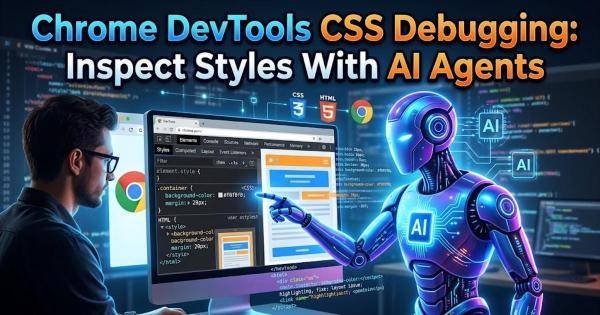
A page can look wrong even when its CSS appears correct: an inherited rule, a more specific selector, or a declaration inside a cascade layer may be overriding the value you intended. Chrome DevTools MCP now gives compatible AI coding agents a way to inspect matched CSS rules, inherited styles, and overridden declarations through the browser's debugging tools. This tutorial shows you how to connect the server, request an element snapshot, and use the new `get_css_styles` tool to trace a styling problem back to its source.
What the new CSS inspection tool actually does
Chrome DevTools MCP connects an AI client to Chrome DevTools through the Model Context Protocol (MCP), a standard that allows compatible applications to exchange information with tools. Google's October 20, 2026, DevTools update describes improvements to this integration, including CSS style inspection, configuration-file support, and more efficient processing of large performance recordings. The CSS tool is particularly useful when an agent needs to explain why a declaration is not taking effect rather than simply suggest another CSS rule.
The `get_css_styles` tool retrieves matched rules, inline styles, inherited styles, custom properties, and cascade information for a specific element. It orders rules by cascade precedence and marks overridden declarations with an `[overloaded]` prefix. Results are paginated, with 10 rules per page by default, so an element with a long list of applicable rules may require additional requests.
There is one important distinction: inspecting styles is not the same as fixing them. The tool helps an agent identify the rules involved, but you should still verify the proposed change in the browser and in your actual project files.
Step 1: Prepare Chrome and your AI client
You need Google Chrome, Node.js with the Node Package Manager (npm) tooling available, and an AI client that supports MCP servers. Use a current Chrome installation and check your client’s documentation for its configuration-file location. The server can launch its own Chrome session, which is usually the simplest setup for a first test because it avoids having to attach to an already-running browser.
Before connecting a browser to an AI agent, decide which pages the agent should be allowed to inspect. Start with a local development site or a non-sensitive test page. Avoid using a browser session containing banking, email, administration, or other private accounts unless you have deliberately configured an appropriate isolated environment.
Step 2: Register the Chrome DevTools MCP server
Add a server entry to your AI client's MCP configuration. The following example uses Node.js to launch the official Chrome DevTools MCP package and starts Chrome in an isolated session. The configuration is illustrative: the exact file location and restart procedure depend on your AI client.
{
 "mcpServers": {
 "chrome-devtools": {
 "command": "npx",
 "args": [
 "-y",
 "chrome-devtools-mcp@latest",
 "--isolated"
 ]
 }
 }
}
The `npx` command runs the package, while `--isolated` asks the server to create a temporary Chrome user-data directory that is cleaned up when the browser closes. The `-y` option allows npm to proceed without an interactive confirmation prompt. Because `@latest` can resolve to a newer package over time, teams that need reproducible environments should evaluate a specific version and pin it instead of relying indefinitely on a moving package tag.
Save the configuration and restart the MCP connection or AI client as required. Check that the server starts successfully and that its browser tools become available. If the connection fails, first check that Node.js and npm are installed correctly, the configuration is valid JSON, and the client is reading the file you edited.
Step 3: Open the page and capture an element snapshot
Ask your AI client to open your development page in the connected Chrome session. Then request a page snapshot and identify the element whose appearance is incorrect. A snapshot gives the agent a structured view of the page and assigns element identifiers that can be used by subsequent tools. These identifiers are important: the CSS inspection tool expects the UID returned by the snapshot, not an arbitrary CSS selector typed by the user.
For example, suppose a button should have a dark background but appears white. Ask the agent to navigate to the page, capture a snapshot, and locate the button by its visible text or surrounding context. Have it report the relevant page ID and element UID before moving to the next step. If the element is missing from the snapshot, confirm that the correct page is open and that the page has finished rendering.
Step 4: Inspect the matched CSS rules
With the page ID and element UID available, ask the agent to call `get_css_styles` for that element. Request the active declaration for the background, the matching selectors, the source locations, any inherited rules, and declarations marked as overridden. This turns a vague visual problem into a more specific question: which rule currently wins, and what caused the intended rule to lose?
Imagine that the element has a class selector setting a dark background, but a more specific selector later in the cascade assigns a white background. The output can help distinguish the winning declaration from the overridden one. If the value comes from a custom property or an inherited rule, the same inspection can reveal that the problem originates somewhere other than the button's own class.
Use a focused request such as the following with your AI agent:
Inspect the CSS for the selected button.
Report the winning background declaration, its selector
and source location, and any overridden declarations.
Check inherited styles and relevant custom properties.
Explain the smallest likely fix before changing any files.
This is an instruction for the AI client, not a command to run in a terminal. The client must actually have the Chrome DevTools MCP tools enabled for it to perform the inspection.
Step 5: Read the cascade instead of guessing
CSS rules do not win simply because they appear last in a file. The browser evaluates factors such as origin, importance, cascade layers, specificity, and source order. Inheritance also matters: some properties pass from a parent to its children, while others do not. When the inspected output includes several competing declarations, ask the agent to explain which of these factors determines the winning value rather than automatically increasing selector specificity.
For instance, adding `!important` to a button's background may appear to solve the problem, but it can create a harder-to-maintain cascade and complicate later overrides. A better fix may be to remove a stale rule, correct a selector, adjust the intended layer, or update the custom property at the right scope. The inspection results provide evidence for choosing among those options; they do not make the design decision on your behalf.
Step 6: Handle pagination and verify the fix
The default CSS inspection response contains 10 rules per page. If the tool reports more rules, ask the agent to retrieve subsequent pages using `pageIdx` and, where supported, adjust `pageSize`. Do not assume that the first response contains every matching rule. This matters on sites with large design systems, utility classes, nested layers, or components that inherit styles from several ancestors.
After identifying the cause, have the agent propose the smallest change and explain which file and declaration should change. Review the actual code modification, reload the page, and inspect the same element again. Confirm that the intended declaration now wins and that the visual result is correct at the viewport sizes you support. If the page uses dynamic styles or changes classes at runtime, reproduce the relevant interaction before treating the issue as resolved.
Step 7: Keep the MCP setup within safe boundaries
Chrome DevTools MCP is powerful because it can interact with a real browser, but that capability deserves careful configuration. The server supports options for browser isolation, filesystem roots, and enabled tool categories. Its documentation states that file-writing tools are restricted to the operating system's temporary directory by default when no filesystem roots are configured and the client does not negotiate the required roots capability. Do not disable those restrictions merely to make a workflow convenient; grant access only to the trusted workspace that the agent needs.
Also remember that an isolated browser profile and filesystem permissions solve different problems. Isolation reduces the chance of reusing existing browser state, while filesystem restrictions limit where supported file tools can operate. Neither replaces reviewing agent actions, protecting credentials, or testing code changes before they reach production.
When this workflow is worth using
This approach is most useful when a CSS issue has several plausible causes and manual inspection is taking too long. It can help investigate conflicting selectors, inherited styles, custom properties, and cascade behavior while keeping the explanation tied to what Chrome actually reports. It is less valuable for an obvious one-line typo, and it cannot guarantee that an AI-generated fix is correct.
Start with one reproducible styling bug on a local page. Capture the element, inspect its matched rules, make one targeted change, and verify the result in Chrome. Once that process is reliable, you can incorporate browser-based CSS diagnosis into a broader debugging workflow without giving an AI agent unnecessary access to your browser or project files.
Share this post

Written by