
How to Use Find Hub Remembered Items to Find Things You Put Away
Learn how to use Google Find Hub Remembered items with Gemini on Android 16 or later. Save storage locations, add photos and notes, retrieve belongings by voice, and update entries when items move.
On this page
You put your spare keys in a drawer, store your passport somewhere safe, and a week later cannot remember where either went. Google's Find Hub now offers a way to record those locations on Android, letting you ask Gemini where you left an item instead of searching every cupboard. The Remembered feature is particularly useful for belongings that do not have a Bluetooth tracker attached to them, but it works by saving information you provide rather than tracking objects automatically.
How Find Hub Remembered Items works with Gemini
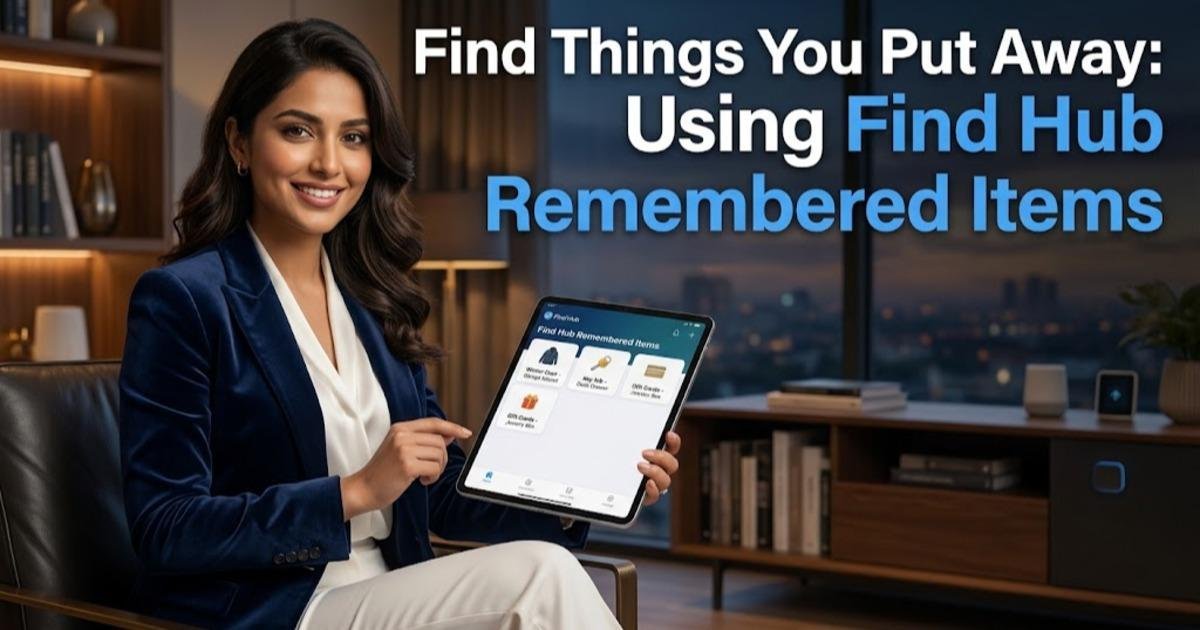
Google introduced Remembered items as part of its September 2026 Android feature update. The feature connects Gemini, Google's AI assistant, with Find Hub, the app used to locate compatible devices and tracked belongings. You tell Gemini what you put away and where you left it, and the information is saved so you can retrieve it later by asking a question or opening Find Hub.
For example, you could say that your spare house key is in the kitchen drawer. When you need it later, you can ask Gemini where you put the key, and it can retrieve the saved location. You can also add a photo or notes to help distinguish similar items, such as two sets of keys stored in different places. Unlike a Bluetooth tracker, however, this feature cannot determine whether somebody has moved an object after you recorded its location.
Check whether your Android phone supports Remembered items
Before setting up the feature, make sure your phone meets Google's requirements. You need a device running Android 16 or later, the Find Hub and Gemini apps, and the same Google Account signed in to both apps. Gemini must also be configured as your default digital assistant, and both Gemini and Find Hub must be available in your country.
On your Samsung Galaxy or another compatible Android phone, open Settings and look for the Android version under About phone or Software information. Next, open the Google Play Store and check whether Find Hub and Gemini are installed and have updates available. If the Remembered tab does not appear, update the apps first and check again; the availability of a feature can depend on its rollout and regional support.
Step 1: Set Gemini as your default digital assistant
Gemini needs to be the phone's default assistant for the voice-based workflow. Open Settings, select Apps, then Default apps, and look for Digital assistant app. Select Gemini if it is available as an option. The names and placement of these settings may differ slightly between Samsung One UI versions and other Android interfaces.
Once configured, activate Gemini by saying "Hey Google" or by pressing and holding the power button if that gesture is enabled on your phone. If Gemini opens normally, you can move on to saving an item. If it does not, verify the assistant selection and the relevant voice activation settings before troubleshooting Find Hub itself.
Step 2: Tell Gemini where you put an item
Choose an everyday object that you sometimes misplace, such as your spare keys, glasses, wallet or passport. After activating Gemini, describe the item and its storage location in one clear sentence. For example, say, "Hey Google, remember in Find Hub that I put my spare house key in the kitchen drawer." Explicitly mentioning Find Hub helps make your request unambiguous.
Check that Gemini has saved the intended item and location. Use a specific description instead of a vague phrase such as "somewhere in the bedroom." A record saying "passport in the top drawer of the bedroom dresser" will be much more useful than one that merely says "passport at home." Remember that the quality of the result depends on the information you supply, so correct any mistake immediately.
Step 3: Save an item manually in Find Hub
You do not have to use voice commands for every entry. Open the Find Hub app and select Remembered near the bottom of the screen. Tap Add, then enter the item's name, its storage spot and, where appropriate, the location associated with it. This manual method is useful when you want to record several belongings in one sitting or prefer not to speak your information aloud.
For example, you might create an entry called "Camera battery" and set its storage spot to "small black box on the office shelf." You can also enter a location such as Home when that helps distinguish belongings kept in different places. If you grant the necessary location permission, Find Hub can automatically detect and save your current address when adding or updating an item's location.
Step 4: Add a photo and notes for easier identification
After creating an entry, open it in the Remembered section and look for the options to add a photo or notes. Google supports up to two photos per remembered item, which can help when a written description is not enough. A picture of the actual drawer, container or shelf can make the saved information easier to use when you return to it later.
Notes are useful for details that do not fit naturally into the item's name or storage spot. For instance, you could record that a document is inside a blue folder within the drawer. Keep sensitive information to a minimum, particularly when recording identity documents or financial paperwork, and review who can access your unlocked phone before saving such details.
Step 5: Ask Gemini where you left the item
When you need something, activate Gemini and ask a direct question such as, "Where did I put my spare house key?" Gemini can use the saved information to tell you the location you previously recorded. You can also open Find Hub, select Remembered and browse or search the saved entries without using the assistant.
The distinction between remembering and tracking matters here. If you saved that your key was in the kitchen drawer but later moved it to a coat pocket, Find Hub will not automatically know about the move. You must update the record to reflect the new storage spot. Treat the feature as a searchable memory aid, not as a live location service for ordinary objects.
Step 6: Update a location when you move something
Whenever you relocate an item, update its existing entry rather than creating another record with a different location. You can ask Gemini to update the saved information, using a clear instruction such as, "Move my spare house key to the hallway cabinet in Find Hub." Alternatively, open Remembered, select the item and edit its storage spot or location directly.
Using the same item name when updating a location helps prevent duplicate entries. You can also change its notes, replace or add photos, and remove records for items you no longer need to remember. If an item has several possible storage locations, make the current one explicit so that a future search does not lead you to an outdated place.
What to do if Remembered items is missing
If you cannot find the Remembered tab, first confirm that your device runs Android 16 or later and that both apps are installed and signed in to the same Google Account. Check that Gemini is the default assistant and that Find Hub is enabled in Gemini's settings. If voice commands fail to save an item, explicitly mention Find Hub and describe the storage location clearly.
Also check for available app updates and allow time for a feature rollout to reach your device. If the feature remains unavailable, it may not be supported for your phone, account or region yet. Avoid installing unofficial application packages to force access, especially when the feature handles personal information.
When Remembered items is useful—and when it is not
Remembered items is best suited to things that need a reliable written reminder rather than electronic tracking: passports, spare keys, tools, household supplies and documents stored in a particular cupboard. It can also help you remember where you parked or where you left an item temporarily, provided you record the location accurately. Its main advantage is that recording a location takes little effort, and the information remains searchable when you need it.
For a phone, a compatible Bluetooth tracker or another supported device, use Find Hub's actual locating capabilities instead. Those systems can use device or tracker location information, whereas Remembered items simply retrieves your saved description. If you use the new feature regularly, update entries as soon as you move important belongings; that small habit is what makes the saved locations dependable.
Share this post